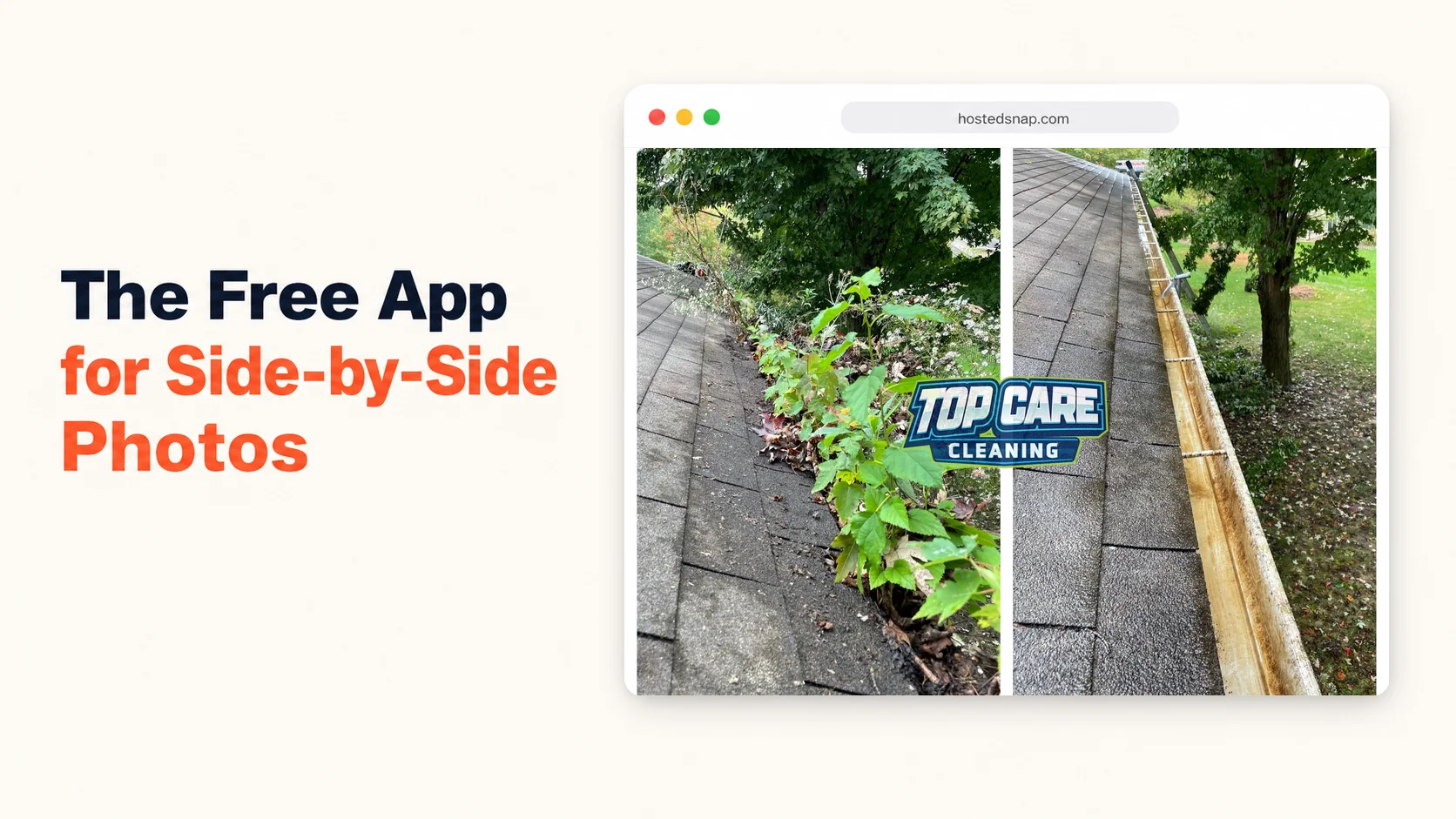
Every Tuesday morning I post a before-and-after to the Top Care Cleaning Google Business Profile. Last week a gutter tech shot both frames on his iPhone while still on the ladder, opened a mobile browser, and had a finished app for side by side photos combined and ready to post before he climbed down. Sixty seconds. No download required. For four years I tried native apps for this job. Then I stopped. Here's why a browser-based tool wins and exactly how the mobile workflow runs.
What is an app for side by side photos?
An app for side by side photos is any tool that takes two images and joins them into one combined frame — usually a before-and-after — so both photos display together in a single post or share. The tool can be a native install from an app store or a web-based tool that opens in a mobile browser. Both do the same job. One of them does it faster.
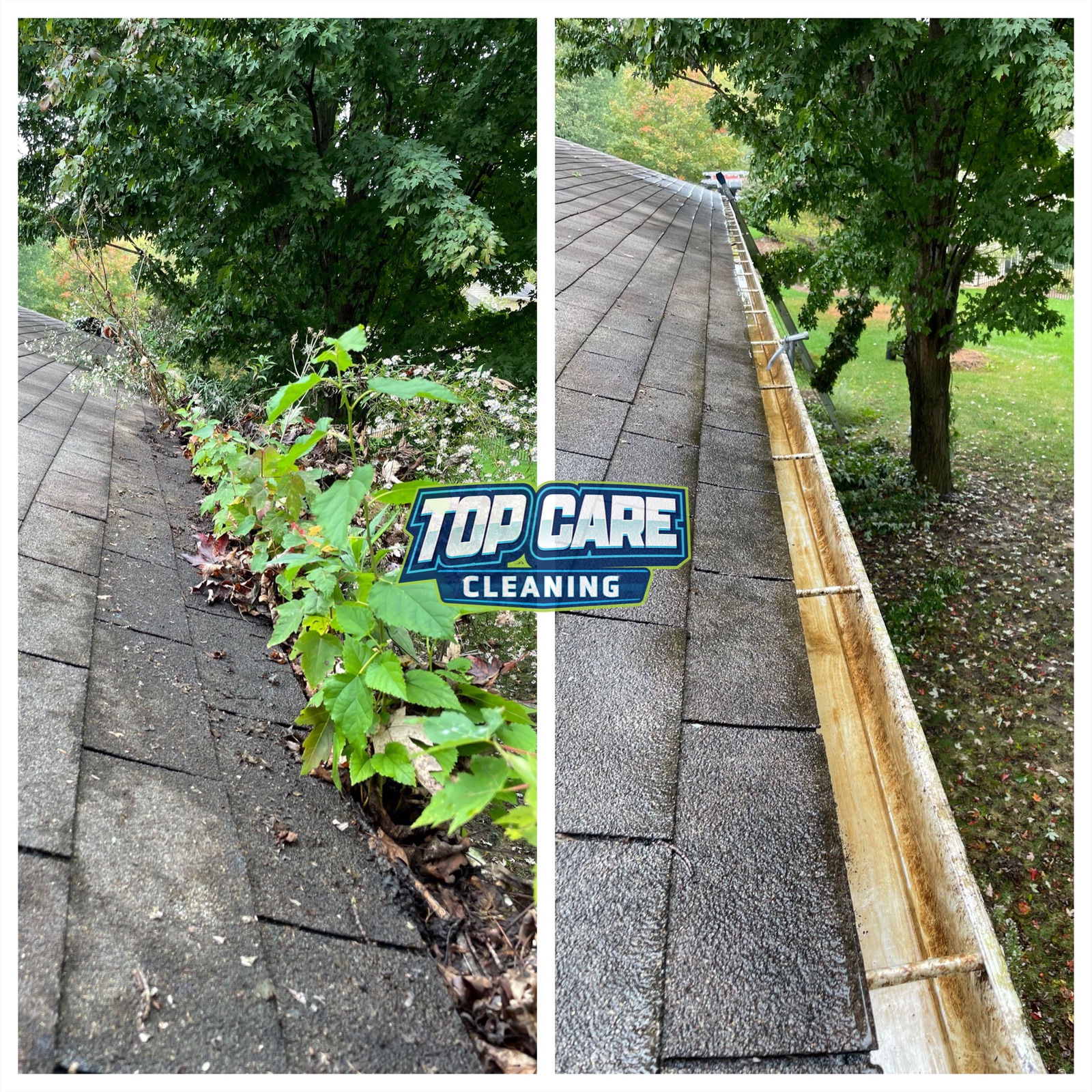 Top Care Cleaning gutter clean before and after — Grand Rapids, MI. One of our techs shot both frames on his iPhone mid-job and combined them into a single side-by-side post in 60 seconds using a mobile browser tool. No app install. No waiting on an App Store update. Just the photo.
Native App vs. Browser Tool: The Honest Comparison
I want to address the native-app question directly because most people searching for an app for side by side photos are thinking about the App Store. That's the reflex. "I need to do something on my phone — download an app."
The reflex makes sense for tools you use daily (phone, camera, maps). It does not make sense for a tool you use twice a week to combine two photos. Here's why.
The Install Friction Problem
A native app requires a download. That sounds trivial until you're standing in a customer's driveway at the end of a job, both hands just off a gutter scoop, and you need to produce a proof post before you drive to the next address. Pulling up the App Store, finding the app, waiting for the download, granting camera roll permissions, getting pushed through an onboarding flow — that's five minutes gone. For a tool you needed to use in sixty seconds.
A browser-based tool opens in one tap. Bookmark it. It's there every time, no permissions prompt, no onboarding, no version update blocking you on a morning when you're trying to post.
The Permissions Problem
Native apps for photo editing request broad permissions: access to your full camera roll, sometimes microphone access, sometimes location. I've had cleaning techs on my crew refuse to download apps mid-job because their work phone had MDM restrictions. A browser tool requests nothing. It's just a webpage. Upload the two photos, download the result, done.
The App Store Update Problem
Native apps go stale. You open it in the field, and iOS or Android is prompting you to update before it runs. That prompt is a freight train to deliver a pizza. You don't want a mandatory update cycle in your Tuesday morning posting workflow. Browser tools update silently on the server side. You open the URL, and it's the current version. Always.
What Native Apps Do Better
I'll be honest about where native apps have the edge. If you're doing batch processing — combining 50 before-and-afters at once from a multi-day job — a native app with background processing will outperform a browser tab. If you need offline access in a dead-zone job site, a native app that caches locally beats a browser tool that requires a signal.
For the use case I'm describing — one tech, one gutter job, one before-and-after to post on Google Business Profile — the browser tool wins every time. The overhead doesn't match the task.
How to Use a Mobile Browser Tool as Your App for Side by Side Photos
This is the exact workflow I run for Top Care. The whole thing fits inside a normal job visit.
Step 1: Shoot the before first
Before any work starts, shoot the before photo. Landscape orientation if the house or gutter span is wider than it is tall. Portrait if you're shooting a downspout or a detail shot. Note where you're standing — same angle for the after is non-negotiable. A mismatched angle makes the side by side photo look like a sloppy collage, not evidence.
At Top Care, techs drop a pin in their map app or take a quick screenshot of where they're standing. It takes three seconds. It saves the post.
Step 2: Do the work, shoot the after
After the job is complete, return to the same spot. Same angle, same height, same distance. Shoot the after in the same orientation you used for the before.
The most common mistake at this step: the before was shot in landscape and the after was shot in portrait because the tech switched to portrait to shoot a detail. Mixed orientations produce a lopsided combined image. Match them.
Step 3: Open the browser tool
On iPhone or Android, open your mobile browser and navigate to the tool. Bookmark it so it's a one-tap open, not a re-search every time. The tool should load as a mobile-responsive page with two upload slots visible without scrolling.
If you're using Hosted Snap, the mobile flow is: two upload buttons, tap the first, select the before photo from your camera roll, tap the second, select the after, tap combine. That's it.
Step 4: Pick your layout and export
For a gutter clean or a house wash, vertical-split (before on the left, after on the right) is the default. The transformation reads left-to-right in a single horizontal glance. For a roof or a long driveway shot, horizontal-stack (before on top, after on bottom) fills the frame better.
Export at full resolution. If the tool is downsampling your photos to push you toward a paid tier, that's a red flag. Move on.
Step 5: Post directly from your phone
The downloaded image lives in your camera roll. From there, open Google Business Profile (the app or the mobile browser), create a post, attach the combined image, drop in a one-line caption with the service type and neighborhood, and publish. Ninety seconds from export to posted.
The Mobile-Specific Mistakes That Kill the Post
I've watched techs on my crew make every one of these. The fixes are simple once you know them.
Mixed portrait and landscape source photos
Already mentioned this, but it bears repeating because it's the most common mistake. If the before is landscape and the after is portrait, the combiner tool will either stretch one image or crop both to match — neither result looks clean. The fix is shooting both in the same orientation, before the job starts, not after.
Shooting in direct sunlight on the after
Overcast or consistent daylight gives you a flat, honest before-and-after where the transformation is clearly the work, not the light. Direct afternoon sun on the after photo makes white gutters look cleaner than they were, and your tech gets the credit for the cloud cover, not the cleaning. Customers picking vendors don't trust photos that look too good. Honest photos close more jobs.
Using the phone's built-in screenshot stitch
Some iPhone and Android versions have a built-in "long screenshot" or collage feature in the Photos app. These produce low-resolution outputs with inconsistent sizing and no aspect-ratio control. For a personal photo, fine. For a GBP proof post, the quality is noticeably lower. Use a purpose-built side by side photo app — even a browser-based one — and export at source resolution.
Adding text overlays in the field
I've seen techs add "BEFORE" and "AFTER" in big block text using their phone's photo editing tool before they even combine the images. The result looks like a watermark-on-your-own-work situation: the branding takes over the transformation, and the viewer reads "marketing" instead of "proof." If you need labels, add small corner pills — low-contrast, white text, eight-point-sized. Or skip the labels entirely if the gutter sludge speaks for itself.
Using the combiner app as a design suite
Some tools market themselves as an app to put photos side by side but load you into a full template library the second you open them. You came to combine two photos. Instead you're scrolling through border styles and sticker packs. That's a design suite wearing a combiner app's clothes. If the two upload slots aren't the first thing you see when the tool loads, close it and find something faster.
Why This Matters for a Service Business (Specifically)
Most articles about combining photos on mobile are written for influencers — people who need aesthetic layouts, brand fonts, color palettes. That's not the service-business use case.
A gutter tech at Top Care Cleaning needs to produce a credible proof post in the five minutes between finishing the job and driving to the next address. The audience for that post is a homeowner in Grand Rapids, MI who is deciding between us and two other cleaning companies. That homeowner is not impressed by design templates. They are impressed by the gutter sludge on the left and the clean aluminum on the right, unfiltered, from a real house in their neighborhood.
That's the whole job. An influencer-tool-priced-for-influencers gets in the way of that job. A single-purpose browser tool — free, honest, no watermark — gets out of the way.
My dad and uncle started Top Care in 1980. We've got 400+ Google reviews and forty-six years of jobs behind us. None of that was built on content templates. It was built on showing the work until the neighborhood trusted us. The side-by-side format is the best modern version of that same proof.
Where the Mobile Before-and-After Fits in a Weekly Posting Cadence
Service businesses that want consistent GBP visibility need a posting cadence that doesn't rely on a marketing team. Here's how the mobile workflow scales.
The one-per-job minimum
Every job should produce at least one before-and-after attempt. Not every attempt will be post-worthy — bad angle, bad light, wrong orientation. But if you shoot for one per job, you'll have enough usable material for a weekly post without any extra scheduling.
At Top Care, we run 12-20 jobs a week during peak season. Maybe 8-12 frames are usable. We post one per week on GBP and save the rest for Facebook, Nextdoor, and estimate-email attachments.
The Tuesday rule
Pick one day of the week to post to GBP. We use Tuesday. The day doesn't matter. The consistency does. The GBP algorithm rewards regular posting over sporadic bursts. One clean before-and-after every Tuesday outperforms three posts one week and nothing for the next three.
You can use a picture side by side app the morning of posting day to batch-combine the week's before-and-afters. Or techs can combine in the field right after the job. Either workflow is fine. Consistency is the only non-negotiable.
Repurposing the same combined image
The before-and-after you post to GBP on Tuesday can also go to:
- Facebook business page (same or next day, longer caption)
- Instagram (square-crop version if needed)
- A reply to a Google review from that customer
- The estimate email for prospects in the same neighborhood
One image, four or five uses. This is why the production step needs to be fast. If combining two photos takes 15 minutes, you won't do the repurposing. If it takes 60 seconds, you will.
Picking the Right Tool: A Four-Question Test
Any time I'm evaluating a new app for side by side photos — native or browser-based — I run the same four questions.
Are the two upload slots the first thing I see? If the tool loads me into a template gallery or a feature tour, it's not built for this job. It's built to impress me into a subscription.
Does the free export have a watermark? A tool that watermarks your export on the free tier is charging you with your own brand. That's not honest-free. That's advertising disguised as a free product.
Does it work in a mobile browser without downloading anything? If the answer is "you need to download our app first," ask yourself whether the download is justified by the task. For combining two photos once a week, it almost never is.
Is the output resolution the same as my source photos? A tool that downsamples to 720p on the free tier and sells you "HD export" as a Pro feature is telling you the free version isn't complete. The free version should export at full resolution. That's the whole job.
Hosted Snap passes all four. So do a handful of others in the space. The side by side photo generator comparison covers the broader tool landscape if you want to evaluate alternatives.
FAQ: App for Side by Side Photos
Do I need to download a native app to combine photos on my phone?
No. Browser-based tools work on iPhone and Android without any install. Open the URL, upload two photos, combine, download. The whole flow runs in a mobile browser tab. For most service-business use cases — one before-and-after at a time, a few times per week — a browser tool is faster than a native app because you skip the download, permissions prompts, and update cycle.
Why doesn't Hosted Snap have a native app in the App Store?
Hosted Snap runs as a progressive web tool. On iPhone, you can add it to your home screen from Safari (tap Share, then "Add to Home Screen") and it launches full-screen like a native app — without going through the App Store. No install review delay, no mandatory updates blocking your Tuesday morning workflow, no permission requests for your full camera roll. It works like an app without the App Store friction.
Can I use a browser-based tool offline?
Not reliably. Browser tools require an internet connection to process and return the combined image. If you're working a job in a dead-signal area, either use a native app that processes locally or combine the photos later when you're back in coverage. Most service-business jobs are in residential neighborhoods with decent cell coverage, so this isn't usually a constraint.
Will the photo quality suffer using a browser-based tool versus a native app?
No, if the tool exports at the resolution of your source photos. A browser tool that exports at the original resolution is identical in output quality to a native app that does the same. The quality loss to watch for is downsampling — some free tools (native and browser) reduce resolution on free-tier exports to push you toward paid. Check the export dimensions against your source photos the first time you use any new tool.
How do I get consistent before-and-after angles shooting on a phone?
The fastest method: drop a pin in Apple Maps or Google Maps when you take the before shot. The pin records your GPS position. After the job, navigate back to the pin. Same spot, same angle. For close-up shots where GPS isn't precise enough, take a three-second video pan while shooting the before — that gives you a reference clip to match the after angle against.
Is the side by side photo maker mobile-friendly?
Yes. The tool is responsive and designed to run in a mobile browser. Upload buttons work with your camera roll on both iPhone and Android. The combine and download flow is the same as on desktop — no features are locked behind a "desktop only" gate.
What's the best format to post a combined photo on Google Business Profile?
JPEG at 4:3 or 16:9 aspect ratio, minimum 720px on the short side. GBP accepts up to 5MB per image. Export from your browser tool at source resolution and GBP will handle the compression on its end. Don't pre-compress the image before uploading — let GBP do it so you're starting from the highest quality source.
Does a watermark on my before-and-after hurt GBP performance?
Directly, no — GBP doesn't demote watermarked images algorithmically. Indirectly, yes — a watermark signals "this is marketing" to the viewer, which reduces the trust signal the photo is supposed to generate. A clean, honest before-and-after with no overlay performs better with real humans making real decisions. Use a tool that doesn't add a watermark to the free export.
I Built Hosted Snap Because a 60-Second Job Shouldn't Take 15 Minutes
I was paying for a design app that treated every before-and-after like a brand campaign. I'd open the tool, load a template, resize photos, fight with layer menus, and come out the other side 15 minutes later with a combined image that looked... fine. Not better than what I'd get from a simple two-slot combiner. Just slower and more expensive.
So I built Hosted Snap — a free browser-based tool that does the one job and stops. Two upload slots, pick a layout, export at full resolution, done. It works as an app for side by side photos on any phone without a download. Honest pricing, no watermark, no influencer-tier subscription.
The whole point is removing the production tax so a gutter tech at Top Care can post a before-and-after between jobs without losing five minutes to an App Store download. If you run a service business and you're posting one before-and-after a week — or you want to start — that's who I built this for.
About Alex Host
I'm Alex Host. I run Top Care Cleaning in Grand Rapids, MI — a family cleaning business my dad and uncle started in 1980. I work there with my brother. We do house washing, gutter cleaning, roof cleaning, window cleaning, carpet cleaning, and Christmas light installation. 400+ Google reviews. Forty-six years of family operation.
I also build SaaS tools for local service businesses — the kind of tools I wish existed when I was paying $4,000/month in Google Ads and getting nickel-and-dimed by every "free" app in my workflow. The whole portfolio lives at hostedbrands.com. Hosted Snap is the first free tool in the stack. There will be more.
If you're a service-business owner who's tired of paying influencer prices for tools you only use twice a week, I built the stack for us. The free tools are honest about being free. The paid stuff is honest about being paid. And the app for side by side photos is a browser tab, not an App Store download, because that's genuinely faster for the job.