I searched for a side by side photo generator three years ago when I was trying to speed up the weekly before/after posts for Top Care Cleaning. The results confused me for ten minutes before I figured out what was going on. Half the tools calling themselves "generators" were AI image tools that made up fake photos. The other half were exactly what I needed: tools that took my two real gutter-cleaning photos and combined them into one image. Two completely different products, same keyword. That disconnect still causes problems for service-business owners today.
What is a side by side photo generator?
A side by side photo generator is a tool that takes two existing photos and combines them into a single side-by-side image. The word "generator" is doing double duty in search: it can mean AI-generates-the-image-from-scratch, or it can mean generates-a-combined-output-from-two-source-photos. For service businesses, the second definition is the right one. You have the photos. You just need the combined output.
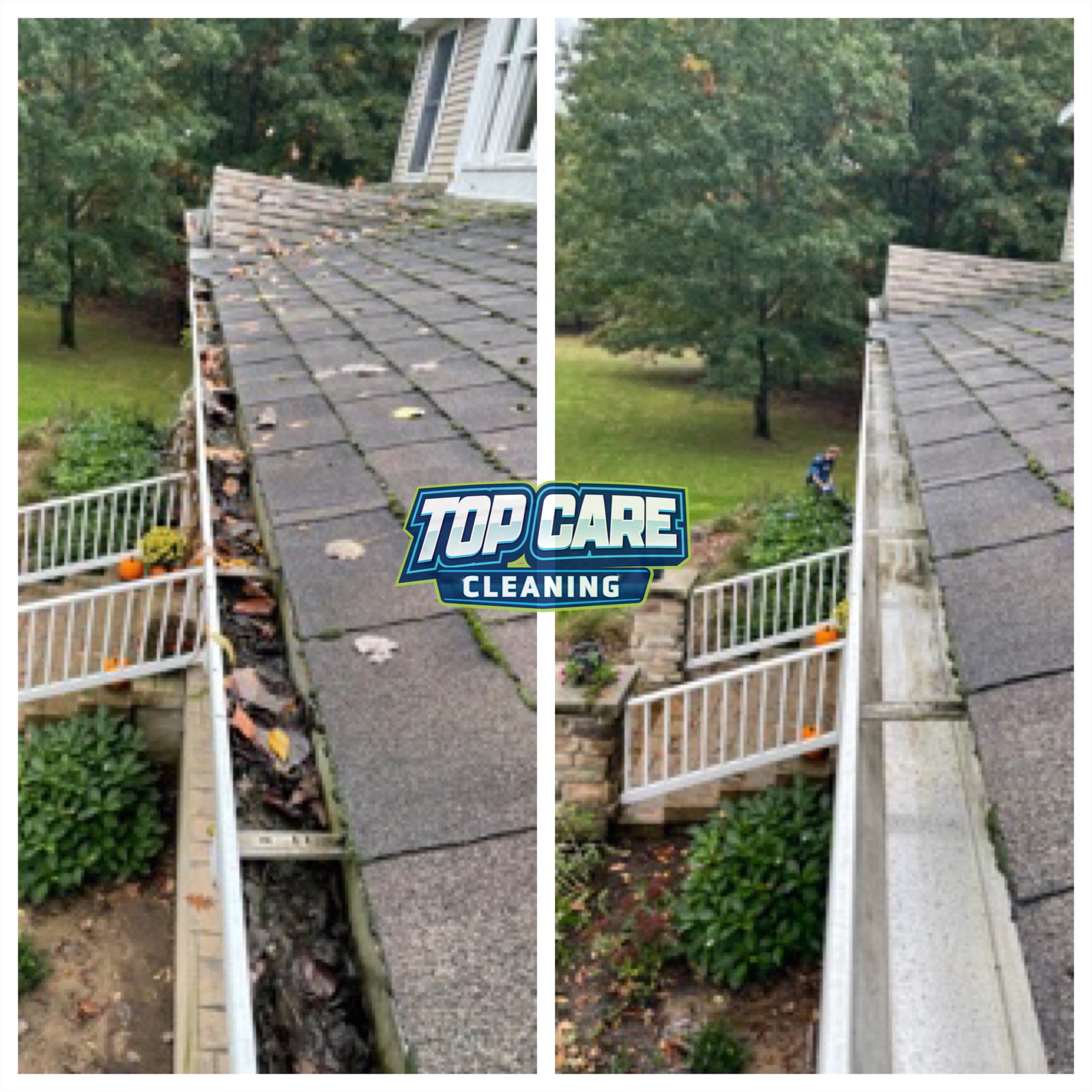 Top Care Cleaning (Grand Rapids, MI) gutter cleaning before and after — this is the exact output a side by side photo generator should produce: two real photos combined into one GBP-ready image, no AI hallucination required.
"Generator" vs. "Combiner" — Why the Language Confusion Matters
This deserves a direct paragraph because it trips up a lot of service-business owners who waste time on the wrong type of tool.
When most people type "side by side photo generator" into Google, they want to take a before photo they already shot and an after photo they already shot and stitch them together into one image. That's a combiner, technically. But "generator" is the word that feels intuitive because the tool generates the output file.
A separate category of tools uses the same word but does something completely different: they use AI to generate photorealistic images from text prompts. Type "dirty gutters" and "clean gutters" and the AI fabricates two images. These tools are fine for illustrators and content marketers who need stock-style visuals. For a local service business posting on Google Business Profile, they are worse than useless. A fabricated gutter photo is not proof of your work. It is not evidence you were at that address. It will not close a lead the way a real before/after will.
The honest answer is that if you want to generate a side by side from your two real photos, you want a side by side photo maker — a tool that takes exactly two uploads and produces one combined image. That's what Hosted Snap does. No AI hallucination. Just your photos, combined.
Why Real Photos Beat AI-Generated Ones for Local Service Business Marketing
I've been posting before/after photos for Top Care Cleaning since 2020. Our GBP has 400+ reviews and consistent weekly photo posts. I know what moves the needle and what doesn't.
The reason real photos win is trust specificity. A customer searching "gutter cleaning Grand Rapids" is not impressed by a photorealistic AI rendering of clean gutters. They have no idea it's fake, but they also get no signal that the work happened at a real address in their area. A real photo of a house on Fulton Street NE with identifiable architectural details — that reads as local evidence. That's the conversion signal.
Real photos also age well. The AI-generated side-by-side you make today will look dated when the image-detection tools improve and platforms start flagging AI content. The real photos from your actual jobs are permanent assets. They're also legally defensible if a customer disputes the quality of work.
Shoot real photos on every job. Even with a phone. Even if the lighting is imperfect. A slightly underexposed real photo outperforms a perfect AI fabrication every time on local search.
What to Look for in a Side by Side Photo Generator (Four-Criteria Test)
Before you commit to any tool, run this quick check. It takes thirty seconds and will save you from the bad patterns.
Criterion 1: Does It Accept Two Source Photos?
The upload interface should have two upload slots — or ask you to upload a first photo and then a second. If the only input is a text prompt, you are looking at an AI image generator, not a photo combiner. Close that tab.
A real side by side image generator built for service-business use puts the upload slots front and center on the landing page. No menu navigation. No "create a new project" step. Two photos, combine, download.
Criterion 2: Is There a Watermark on Export?
The free-tier watermark is the oldest trap in the photo-tool space. The export looks clean in the preview. You download it. There's a branded overlay in the corner. Now you either pay $14.99/month to remove it or you post a side-by-side with an advertisement for the tool burned into your own work photo.
I've called this out before and I'll call it out again: putting a watermark on someone else's photo and calling it "free" is not free. It's free-to-produce-content-for-us. Don't accept it.
Criterion 3: Does the Export Match Your Source Resolution?
Some tools downscale your export to encourage you to upgrade to a paid tier. Your phone shoots at 12MP or higher. You export the side-by-side and it's a 720p JPEG. That's not a technical limitation. That's a business decision to degrade your output.
For Google Business Profile, image quality matters. GBP recommends at least 720px on the short side, and higher-resolution photos tend to display better in the Maps carousel. Export at full resolution or find a different tool.
Criterion 4: How Fast Is the Workflow?
This one is underrated. If a tool takes twelve minutes to produce one side-by-side — login, project setup, template selection, asset upload, layout adjustment, caption burn-in, export — you will not do it every week. The workflow will die in month two because the friction is too high.
The right tool runs in sixty seconds flat after the first use. Open, upload left photo, upload right photo, choose vertical or horizontal layout, download. That's it. Anything longer means the tool was not designed for your use case.
How to Generate a Side by Side Photo for GBP in 60 Seconds
Here's the exact workflow I run on Mondays for Top Care's weekly post. I've done this hundreds of times for gutter cleans, house washes, roof cleans, window jobs, and carpet work.
Step 1: Find Your Two Photos
Open your camera roll or Google Drive. You need a before photo and an after photo of the same job, shot from approximately the same angle and distance. Both should be the same orientation — two landscape or two portrait, not a mix.
If one photo is rotated, fix it in your phone's native photo app before you open any combiner tool. Rotation issues handled inside the combiner produce cropped, awkward output.
Step 2: Open a Photo Combiner That Accepts Real Uploads
Go to a side by side photo maker that takes two uploads. Not an AI generator. Not a full design suite. A combiner with two upload slots and a combine button visible on the first screen.
You want the tool that is a freight train to deliver a pizza — not a freight train. Just the pizza delivery. One job, done well.
Step 3: Upload Before (Left) and After (Right)
Left slot gets the before. Right slot gets the after. This is the universal convention. Viewers scan left to right. Dirty on the left, clean on the right. Problem on the left, solution on the right.
Some tools let you swap the layout. The default should always be before-left, after-right unless your specific job has a directional reason to flip it.
Step 4: Pick Your Layout
Vertical split (photos sit left and right of each other) is the default for most service jobs. The subject is usually a tall structure — a house, a fence, a roofline — and the vertical split fills a phone screen efficiently.
Horizontal stack (photos sit above and below each other) works when the subject is wider than it is tall. A long driveway, a wide fence line, a panoramic lawn view. Don't force a wide subject into a vertical split — you'll lose the edges that prove the work was complete. The broader side by side photo pillar covers the five layout patterns in full.
Step 5: Export at Native Resolution and Post
Download the combined image. Check that the file size is in the same ballpark as your source photos, not dramatically smaller. If the source photos are each 3MB and the export is 400KB, the tool is compressing heavily.
For Top Care, the exported side-by-side goes to GBP the same day, then Facebook and Instagram later. Same image, different caption context for each platform.
The Five Use Cases Where a Generated Side by Side Earns Its Weight
Not every photo needs to be a side-by-side. Here are the five situations where the format actually moves the needle for a service business, and two situations where it's overkill.
Use Case 1: Google Business Profile Weekly Post
One side-by-side per week is the cadence that works. Our GBP posts with before/after side-by-sides consistently outperform single-photo posts on views and on call clicks in the week following the post. The format works because GBP displays your post as a thumbnail in the local panel and a side-by-side communicates "transformation" even at thumbnail size.
Caption format that works: job type + neighborhood + one technical detail + trust signal. Keep the caption under 150 characters so it doesn't truncate in the GBP post preview. The Google Business Profile help center has the technical specs for photo posts if you want to cross-check dimensions.
Use Case 2: Facebook and Instagram Proof Post
Same image, different framing for social. On Facebook, add the customer's first name and neighborhood if they consented. On Instagram, the photo does the talking — keep the caption tighter. Both platforms benefit from the side-by-side format because the transformation is legible without stopping to read anything.
Use Case 3: Quote Follow-Up Emails
When we send an estimate for a gutter clean in a specific neighborhood, we include two or three side-by-sides of recent gutter jobs in nearby neighborhoods. The customer sees proof we've done the work four blocks from their address. Close rate on estimates with embedded side-by-sides runs noticeably higher than estimates without.
This is where having a fast side by side photo generator workflow pays off in dollars, not just engagement metrics.
Use Case 4: Responding to Google Reviews
Occasionally a customer mentions a specific job in their review. We reply with the side-by-side of their actual house. It's a public signal to anyone reading reviews that the work was real, the photos are real, and we remember the job. Most cleaning businesses don't do this because their side-by-side workflow is too slow.
Sixty seconds per image makes this possible. Twelve minutes per image kills the habit in month one.
Use Case 5: Neighborhood Mailers and Door Hangers
This one is underused by service businesses. A printed mailer with a before/after side-by-side of a house in the same neighborhood is more persuasive than any graphic design element. The reader's brain does the math: "That looks like my house. My gutters look like the left photo." The generated side-by-side becomes a conversion asset off digital platforms entirely.
Where It's Overkill
Side-by-sides are overkill for jobs with no visible transformation (air duct cleaning where the duct isn't shown, chemical treatments that don't produce visible change) and for jobs where the "before" was never photographed. If you only have an after, post the after cleanly. Don't produce a weak or misleading before by restaging it. One honest photo beats one dishonest side-by-side.
Mistakes That Kill the Side by Side (Even When You Generate It Correctly)
The tool output is only as good as the source photos. These are the field mistakes I made at Top Care before I got the workflow right.
Mismatched Angles
If the before photo is from ground level at 8 feet back and the after photo is from a ladder at 12 feet out, the combined image looks like two unrelated houses. The viewer doesn't consciously process this, but they register that something is off and the trust signal evaporates.
Fix: mark your shooting spot with a physical reference (a crack in the driveway, a landscaping brick) or take a GPS pin screenshot before you leave for the job. Return to the same spot for the after shot.
Mismatched Orientation
A portrait before photo combined with a landscape after photo produces a combined image where one photo is tall and narrow and the other is short and wide. It looks amateur. Every create side by side photo workflow breaks down at this point if the source photos aren't matched.
Fix: decide on orientation (portrait or landscape) before you start the job and shoot both photos in that orientation. Landscape for wide subjects, portrait for tall ones. Do not deviate mid-job.
Over-Branded Output
A giant logo across the center of the side-by-side tells the viewer "this is advertising" before they register the work. It increases brand exposure and decreases trust simultaneously. Use a small corner watermark or put your branding in the post caption, not burned into the photo.
The work is the proof. The logo is the byline. Keep the proportions right.
Exporting at Low Resolution
If your generator's "free" export is 720px wide and your source photos are 4,032px wide, you've lost 95% of the detail that makes the transformation legible. Check the exported file dimensions before you post it. If the tool is downsampling your output to gate high-res behind a paywall, find a different tool.
Side by Side Photo Generator — FAQ
Is a side by side photo generator the same as an AI image generator?
No. They share the keyword "generator" but do different things. An AI image generator creates images from text prompts using machine learning. A side by side photo generator takes two photos you already have and combines them into one image. For service businesses that need to show real before/after results, you want the combiner, not the AI tool.
Do I need an account to generate a side by side photo?
Not with honest-free tools. A signup wall is a red flag — most tools that require account creation before you can do anything are trying to lock you into a funnel before you've seen the output. A real combiner lets you upload, combine, and download without creating anything.
What file format should I export in?
JPEG at high quality (85%+) is standard for GBP and social. PNG is better if you want to avoid JPEG compression artifacts on clean edges, but the file size is larger and most platforms re-compress on upload anyway. JPEG works for almost every service-business use case.
Can I add "Before" and "After" labels to the generated photo?
Yes, if your tool supports it. Keep labels small, corner-placed, and low-contrast. A small "Before" pill in the top-left and "After" pill in the top-right is sufficient. Labels burned large across the full width of the photo are distracting and signal that the transformation wasn't obvious enough to speak for itself.
How big should the side by side photo be for Google Business Profile?
GBP recommends a minimum of 720px on the short side and 1MB+ file size for best display quality. Most phone cameras shoot well above this threshold. Export at native resolution and let GBP handle the display optimization.
Does the generator work on a phone?
Any browser-based combiner works on mobile without installing a native app. Open the tool in your phone browser, upload from your camera roll, download the combined image directly to your phone. The app for side by side photos article covers the mobile workflow in detail if you want the step-by-step for iOS and Android.
Why do some "free" generators add a watermark to my photo?
Because they're not free. They're free-to-try. The watermark is their ad on your content. You're working for them every time you post a watermarked image to your GBP or social feed. Don't accept it.
How often should I generate and post a side by side for GBP?
Once a week is the right cadence. Consistent weekly posting is more valuable than sporadic high-volume posting. GBP rewards recency, and a regular schedule means your profile is always showing fresh content in local search results.
I Built Hosted Snap Because Generating a Side by Side Should Take 60 Seconds
Three years ago I was paying influencer-tool-priced-for-influencers subscription fees to produce before/after photos for a local cleaning business that needed eight images a week. The tools were designed for brand agencies building campaign assets — not for a service-business owner who needs to post a gutter clean every Tuesday morning before the crew shows up.
I built Hosted Snap because the 60-second workflow didn't exist yet. Two upload slots, a combine button, a download. No signup wall in the usual sense. No watermark on your own work. Honest pricing with no influencer-tier subscription tacked on because the tool happens to do something useful.
If you came here looking for an AI tool that fabricates side-by-side images from text, this isn't that. If you came here because you have two real photos from a real job and you want to combine them into one GBP-ready image in under a minute, that's exactly what Hosted Snap does.
The broader two-photo format context lives in the side by side photo pillar. This article is the generator-specific answer.
About Alex Host
I'm Alex Host. I run Top Care Cleaning in Grand Rapids, MI — a family cleaning business my dad and uncle started in 1980. I work there with my brother. We do house washing, gutter cleaning, roof cleaning, window cleaning, carpet cleaning, and Christmas light installation. 400+ Google reviews. Forty-six years of family operation.
I also build SaaS tools for local service businesses — the kind of tools I wish existed when I was paying $4,000/month in Google Ads and getting nickel-and-dimed by every "free" app in my workflow. The whole portfolio lives at hostedbrands.com. Hosted Snap is the first free tool in the stack. There will be more.
If you're a service-business owner who's tired of paying influencer prices for tools you only use twice a week, I built the stack for us. The free tools are honest about being free. The paid stuff is honest about being paid. I built Hosted Snap specifically because generating a side by side photo from two real job photos should never cost twelve minutes of your Monday morning.