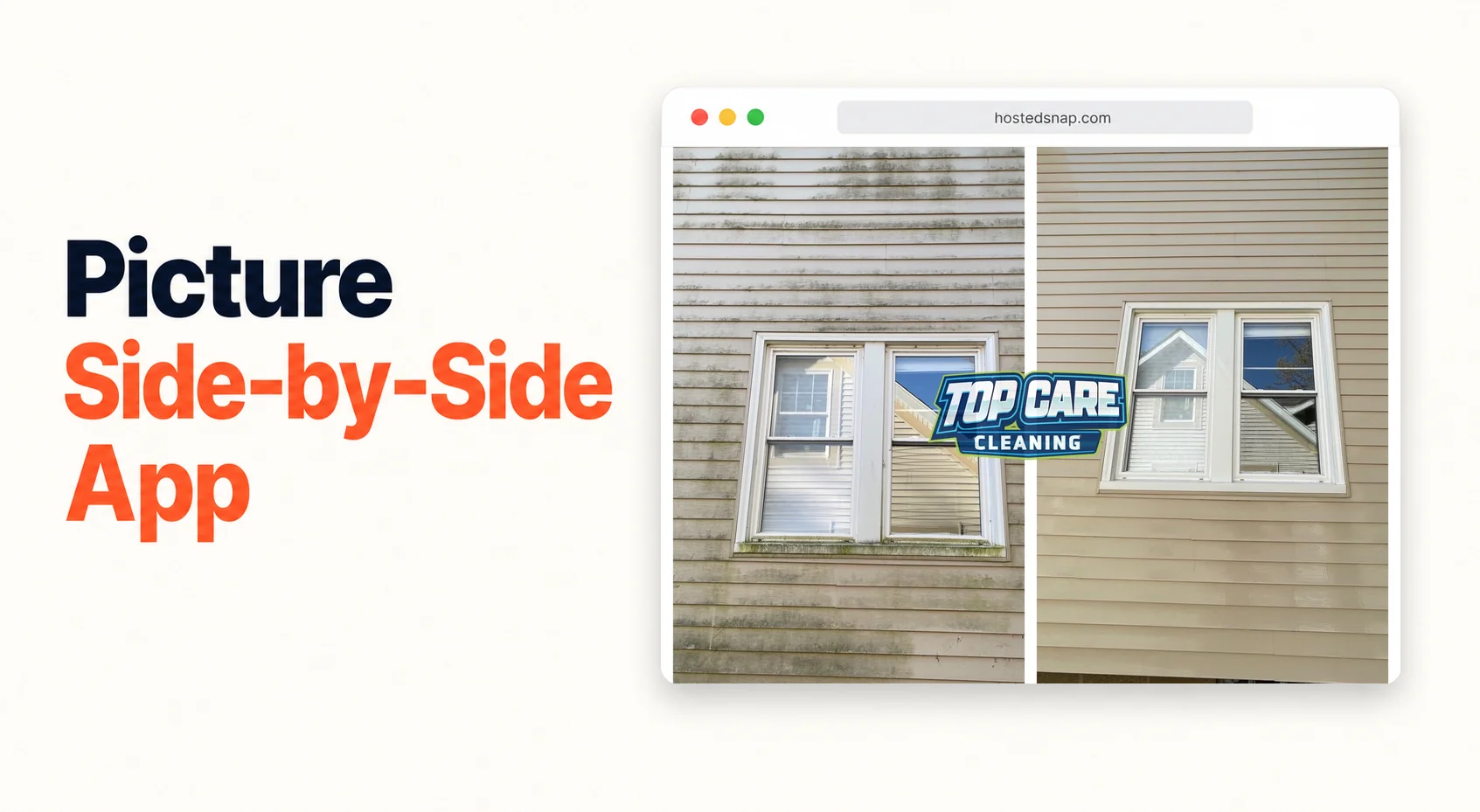
I was paying $19/month for a picture side by side app and spending 12 minutes per photo — on a task that should take 60 seconds. Three steps in, you hit a signup wall. Four steps in, you hit a template library you never asked for. Six steps in, your export has a watermark because you forgot to toggle the Pro setting. Top Care Cleaning runs 400+ Google reviews on the back of before/after posts. That workflow was killing the habit. I built something to fix it, and the fix isn't a native app at all.
What is a picture side by side app?
A picture side by side app is a tool that takes two photos — a before and an after, two angles, or any two related images — and joins them into one combined picture. The result is a single shareable file. For service businesses, it's the fastest way to produce the before/after content that drives Google Business Profile engagement, quote emails, and social proof posts.
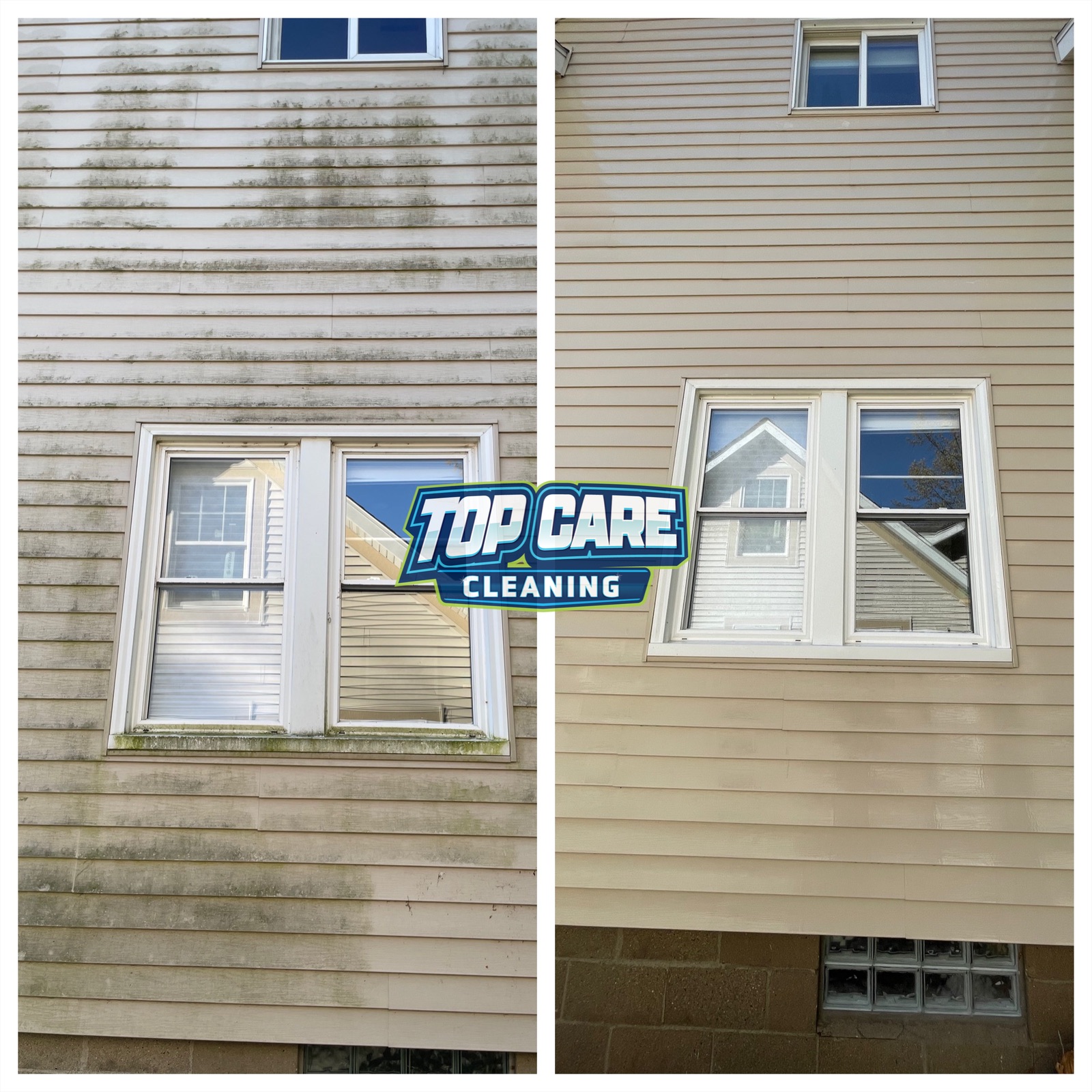 House washing before and after from Top Care Cleaning (Grand Rapids, MI) — the exact kind of picture you put side by side in 60 seconds with a real app workflow, then hand to a customer or post on Google Business Profile the same afternoon.
Why a Web Tool Wins Over a Native App for This Job
The first question most people type is: "is there an app for this?" The honest answer is that a browser-based tool beats a native app for the specific task of combining two pictures. Here's why.
You Already Have a Browser Open
When you're finishing a job and grabbing photos, your phone is in your pocket. You need to post the before/after before you forget. A browser-based picture side by side app opens in the same place you open everything else — no install, no waiting for an App Store update that broke the layout, no re-logging in because the session expired. You type the URL, or tap a bookmark, and you're in.
Native apps add friction. The download, the install, the app permissions screen asking for your camera roll and contacts — that's a freight train to deliver a pizza. The job is two photos joined into one. The tool should reflect that.
No Storage Creep
Native apps sit on your phone eating storage. A photo-combination app you use twice a week does not deserve 180MB of your camera roll's neighbor space. Browser-based tools use zero storage on your device. The combined picture downloads once when you export, then it's done.
For a technician who's already running a job-tracking app, a CRM, and a calendar on their work phone, this matters. Every native app is a tax on device performance and storage.
Updates Don't Break Your Workflow
I've had native apps update overnight and move the export button to a different tab. Or introduce a new "onboarding flow" on the first open after an update — three screens of "Did you know you can now...?" before I can get to the actual tool. Browser-based tools update on the server. You see the current version every time. Nothing to approve, nothing to re-navigate.
The Web IS the App
The best browser-based tools are progressive web apps — they behave like native apps on mobile without requiring an install. Tap-to-upload, drag-and-drop, instant preview, one-tap download. If the tool is built correctly, you cannot tell you're in a browser. The distinction between "native app" and "web app" is a deployment detail, not a quality difference.
This is the framing I built Hosted Snap around. It runs in your mobile browser. It opens to two upload slots. It exports in under 60 seconds. That IS an app — it just doesn't require the App Store.
The Service-Business Case: Why You Need This Weekly
If you run a cleaning company, landscaping crew, HVAC outfit, or any trade where the work has a visible before and after, you need a consistent picture-combining workflow. Not occasionally. Weekly.
The reason is side by side photo posts are the highest-performing format on Google Business Profile for service businesses. Two photos joined into one frame does the comparison work for the viewer. A single after photo asks the customer to imagine the before. Most people don't bother. The side-by-side is the proof.
At Top Care Cleaning, we've run one GBP post per week, every Tuesday, for four years. That cadence is only sustainable because we have a workflow that takes under three minutes — phone to posted. The picture side by side app is the engine of that workflow.
Use Case 1: The Weekly GBP Post
Same format every week. Pull the before from camera roll, pull the after from camera roll, combine them, post with a three-sentence caption. The caption format: service type and neighborhood, one technical detail, one trust signal. The photo does 90% of the heavy lifting.
The algorithm rewards recency and consistency. You don't need creative variation. You need to show up every Tuesday with a clean before/after.
Use Case 2: The Same-Day Quote Email
You walk a job site, take a before photo. You send a quote. Include a side-by-side from a similar recent job at a similar address. The customer sees the result you produced three blocks from their house. Close rate on estimate emails with embedded side-by-sides runs noticeably higher than quotes without.
The workflow here is time-sensitive — you want to send the quote same-day while the customer is still thinking about the job. A 12-minute photo-combining process kills the habit. A 60-second one doesn't.
Use Case 3: Facebook and Instagram Proof Posts
The same side-by-side picture goes to Instagram and Facebook the same day as the GBP post. Caption is longer, more conversational. The picture is the same asset. One production step, three platforms.
Use Case 4: Handing the Picture to the Customer
This one is underused. After a house wash or gutter clean, the tech can walk the customer through the job with a before/after picture combined right there on-site. Not a formal deliverable — just a "here's what we pulled out of your gutters versus what they look like now" handoff.
Customers who receive a before/after comparison are more likely to leave a review and more likely to rebook. The picture is the proof. Most techs don't do this because they don't have a fast enough way to produce it on a job site. A picture side by side app running in a mobile browser solves that. The tech takes the before at arrival, the after at completion, combines them in 60 seconds, and texts it to the homeowner before leaving the driveway.
This is worth building into your job closing checklist. End of job: sweep visible debris, walk-through with customer, send before/after picture. Three steps. The third step used to take too long. It doesn't anymore.
Use Case 5: Nextdoor and Neighborhood Mailer
Before/after pictures in neighborhood-level posts perform differently than on GBP or Instagram. The viewer recognizes the house, the street, the type of vegetation. Specificity is the trust signal. "We washed the colonial three houses down from you" lands harder than a generic before/after from a different city.
Nextdoor posts with a combined before/after picture get engagement from the exact customers you want — neighbors of existing customers, highest-intent leads you can find.
What Makes a Good Picture Side by Side App (and What to Ignore)
I've used a lot of these tools over four years of weekly posting. The categories are predictable.
The Honest-Free Tool
Opens to two upload slots. No template library. No font picker. No design elements you didn't ask for. Export has no watermark. The download is the full resolution of your source photos, not a downsampled 720p version to upsell you on "HD export." This is the category that earns the workflow.
The Free-With-Watermark Trap
"Free" tool exports a picture with the app's branding stamped across the corner. Pay $12.99/month to remove it. This is a watermark-on-your-own-work business model dressed up as generosity. A before/after with another company's logo on it is not a professional deliverable. Skip these entirely.
The Design Suite with a Side-by-Side Template
These tools bury the combine-two-photos function inside a full creative suite. The side-by-side template is four menus deep, behind a template picker, behind a brand-kit setup screen. It eventually works. But you're paying 15 minutes per picture to navigate a platform built for graphic designers, not for a cleaning company owner who needs to post on Tuesday morning.
These are influencer-tools-priced-for-influencers. They make sense for agencies and designers producing hundreds of pieces of content. For a service business using one format twice a week, the cost-per-task is absurd.
The Native App That Does Everything
Some apps claim to do side-by-side pictures plus photo editing, plus collage-making, plus story templates, plus GIF export. The feature list is long. The side-by-side workflow inside it is usually three or four taps buried in the navigation. And the app ships an update every three weeks that rearranges the interface.
The two pictures side by side case is simple. The tool should be simple. Complexity in the tool is not a feature — it's friction.
The 60-Second Workflow on Mobile
This is the exact flow for producing a before/after picture on a phone using a browser-based tool. Run it once to get the muscle memory, and it's automatic.
Step 1: Pull Your Two Photos
Open your camera roll. Find the before — usually from earlier in the day or a previous visit. Find the after — from five minutes ago. Check that both are the same orientation. Portrait and landscape mixed together will produce an awkward output no matter what tool you use. Fix that in your native photo app before you start.
Step 2: Open the Tool in Your Mobile Browser
Type the URL or tap your bookmark. The tool should open to an upload interface immediately — no login, no welcome tour. If the first screen after loading is a "Create an account to get started" prompt, close the tab. You've hit a signup wall that doesn't belong in this workflow.
Step 3: Upload Before, Upload After
Tap the first slot, select the before photo. Tap the second slot, select the after photo. The tool should show you a live preview. If the preview looks wrong — one photo is upside down, or the dimensions are badly mismatched — go back and fix the source photos.
Step 4: Choose Your Layout
Vertical-split (before left, after right) for most service business subjects — houses, gutters, windows, driveways. They're tall subjects. Horizontal-stack (before top, after bottom) for wide subjects — long driveways, fence lines, roof views from across the yard. The side by side picture app walkthrough covers layout selection in more detail if you need it.
Step 5: Export and Download
Tap the download or export button. The file should save directly to your camera roll or downloads folder at the full resolution of your source photos. If you get a 720p version and a "Download in HD — Upgrade to Pro" button, the tool is using resolution limits as a paywall. Move on.
Step 6: Post or Send
GBP post goes up immediately. Customer text goes out before you leave the driveway. The whole process is under 90 seconds once you've done it a few times.
Mistakes to Avoid When Combining Pictures Side by Side
Different Angles Kill the Comparison
If the before was shot from 10 feet away and the after was shot from 4 feet away, the combined picture doesn't communicate transformation — it communicates inconsistency. The fix is a habit, not a tool: take the before photo from the same position you'll take the after. Pin the location on your phone if you need the reminder.
Mismatched Lighting Reads as Manipulation
Morning before, afternoon after. The siding looks cleaner partly because overhead midday sun reads differently than morning side-light. Customers don't consciously register this, but the comparison feels less convincing. Try to shoot before and after in the same lighting block when the job allows it.
Heavy Branding Inside the Picture
A small corner watermark with your logo is fine. A full-width company logo overlaid across the center of the image is not fine. It signals "this is marketing" before the customer finishes looking at the actual work. Let the transformation do the selling. Put your branding in the post caption or the accompanying text.
Posting Verticals and Horizontals Mixed Together
If your before is portrait and your after is landscape, most tools will letterbox or distort one of them to match the other. The result looks sloppy. Shoot both photos in the same orientation every time. This is the number-one avoidable mistake I see in service-business before/after posts.
FAQ
Does a picture side by side app work on iPhone and Android?
Yes. Any browser-based tool works on both iOS and Android. You don't need a different app for each platform. Open your mobile browser — Safari, Chrome, whatever you use — and navigate to the tool. The upload and download flow is the same on both platforms.
Do I need to install anything?
No. A browser-based picture side by side app requires no installation. Tap the URL, upload your photos, download the combined picture. Done. Some tools offer a "Add to Home Screen" option that creates a shortcut behaving like a native app icon, but even without that, the full workflow runs in the browser tab.
What's the best file format to export?
JPEG for most service-business use cases — GBP posts, social, customer texts. The file size is smaller than PNG and the quality loss is invisible at typical post dimensions. PNG if you're embedding the combined picture in a mailer or printed document where you need maximum quality.
Can I add labels like "Before" and "After"?
Yes, if your tool supports it. Small pill labels in the corners — white text on a dark or coral background, small enough to not dominate the image — help when the transformation is subtle. For an obvious house wash before/after, the labels are optional. For window cleaning, where the difference is harder to read, labels help.
Is there a difference between a "picture side by side app" and a "photo collage app"?
Yes. A side-by-side picture is exactly two photos joined into one frame — designed for comparison. A collage is three or more photos in a grid or mosaic — designed for variety. For before/after posts, you want the side-by-side format, not a collage. Collages diffuse the comparison; the viewer doesn't know where to look.
What resolution should my source photos be?
Whatever your phone camera shoots natively — typically 12MP or higher. Don't downsize before uploading. Let the tool work with the full resolution. You can always compress on export if file size is a concern for a specific platform. Start with the highest quality source you have.
How do I share the combined picture with a customer on-site?
After downloading, open your photo in your camera roll and text it directly, or share via email. Some jobs I'll open the photo in the gallery and just hand the phone to the homeowner for a second. The visual hands-on moment is worth more than the digital delivery — seeing the full-resolution before/after on a screen is different from seeing it in a text thread.
Is a web-based tool really as good as a native app for this job?
For combining two pictures, yes. The specific task is too simple to require native app overhead. Upload, combine, export. Browser-based tools handle all three steps without the install friction, storage cost, or update-disruption risk of a native app. The quality of the output is identical.
I Built Hosted Snap Because This Should Take 60 Seconds
Four years ago I was using a design app to make before/after pictures for Top Care Cleaning. Twelve minutes per photo. Subscription I paid once a year without thinking about. I added it up: $240/year for a tool I used for one 60-second task and nothing else. The app was a freight train to deliver a pizza.
I built Hosted Snap because the 60-second version of this workflow didn't exist. Two upload slots, a combine button, a download. No signup wall, no watermark-on-your-own-work, no influencer-tier subscription for a task that is fundamentally simple. Honest pricing, nothing hidden.
If you're a service-business owner posting weekly before/after content — or if you want to start — the tool is free and the workflow is under 90 seconds. For the broader side-by-side format guide, the side by side photo maker article covers every pattern in detail.
About Alex Host
I'm Alex Host. I run Top Care Cleaning in Grand Rapids, MI — a family cleaning business my dad and uncle started in 1980. I work there with my brother. We do house washing, gutter cleaning, roof cleaning, window cleaning, carpet cleaning, and Christmas light installation. 400+ Google reviews. Forty-six years of family operation.
I also build SaaS tools for local service businesses — the kind of tools I wish existed when I was paying $4,000/month in Google Ads and getting nickel-and-dimed by every "free" app in my workflow. The whole portfolio lives at hostedbrands.com. Hosted Snap is the first free tool in the stack. There will be more.
If you're a service-business owner who's tired of paying influencer prices for tools you only use twice a week, I built the stack for us. The free tools are honest about being free. The paid stuff is honest about being paid.