For three years I was paying a design app $19 a month to put two pictures side by side. That's $228 a year to click "left photo," "right photo," "download." The tool took 12 minutes per image — most of that navigating menus designed for marketing agencies, not a cleaning company in Grand Rapids. I built something faster because a two-picture side-by-side should take 60 seconds. This article is the full explanation of why the format matters, how to do it right, and where the friction actually comes from.
What Does It Mean to Put Two Pictures Side by Side?
Two pictures side by side means joining two separate images into one combined frame — before on the left, after on the right, or two angles of the same job, separated by a thin divider. For service businesses, it's the most efficient proof format available: one image, one frame, the full transformation in a single scroll-stop. One picture alone asks the viewer to imagine the other half. Two pictures together do the work for them.
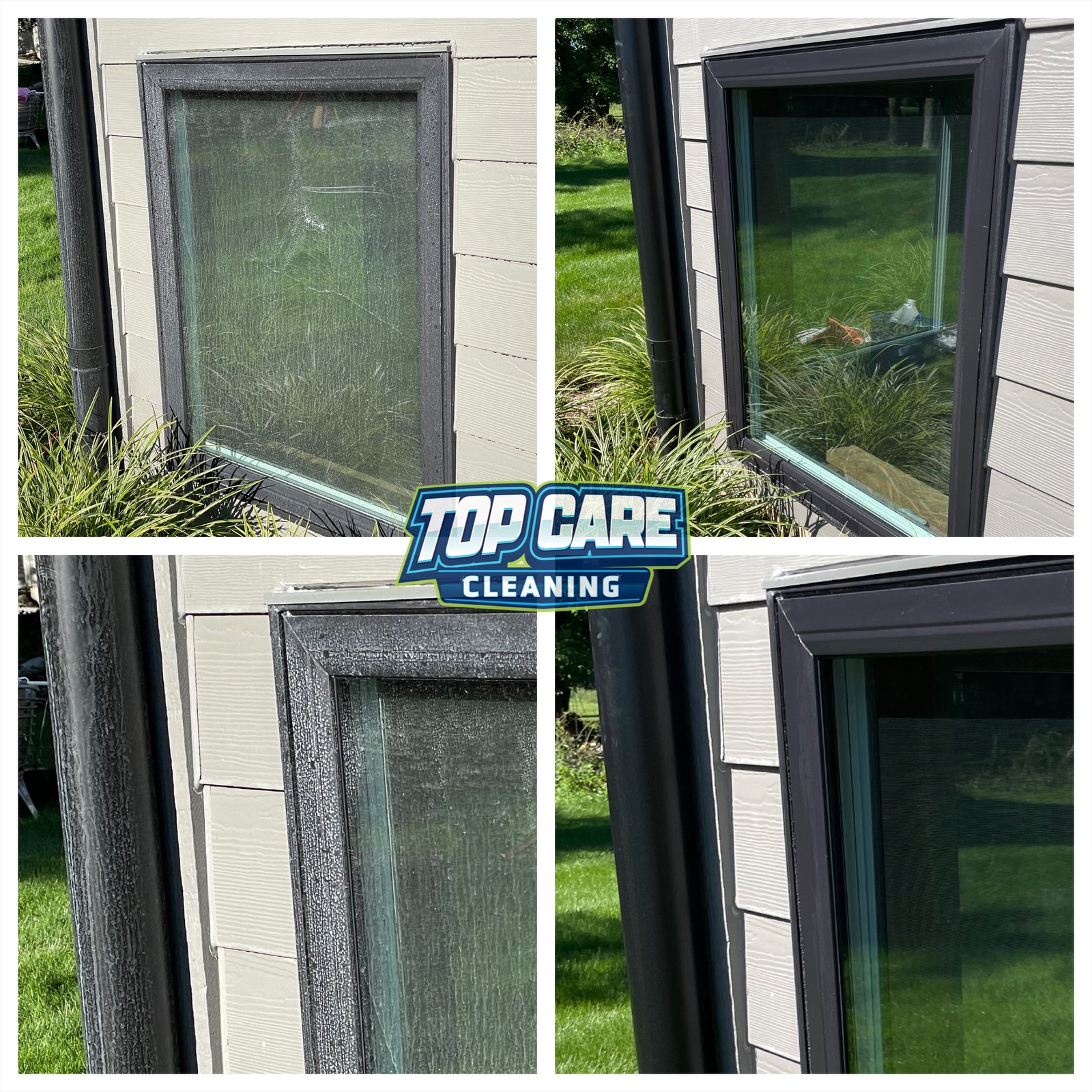 Top Care Cleaning (Grand Rapids, MI) window cleaning before and after — hard-water mineral deposits on the left, crystal-clear glass on the right. This is exactly the kind of two-pictures-side-by-side comparison customers want to see before they book.
Why Two Pictures Side by Side Outperforms a Single Photo Every Time
I've been posting proof photos for Top Care Cleaning since before I built any software. The pattern is consistent: two-picture posts get more views, more clicks, and more phone calls than single-photo posts at roughly the same frequency.
The reason is not mystery. A single "after" photo could be any clean window in any house. A two-picture post with the same address, same angle, same window frame — grimy on the left, spotless on the right — registers as evidence, not advertising. The viewer's brain does a fast comparison and concludes: "These people actually did the work."
That trust differential matters for local service businesses in a way it doesn't matter for product brands. When someone is choosing between three window cleaners with similar ratings on Google, the one who shows the actual work in a before-and-after wins. Not because the photos are professional. Because the photos are real.
The full framing on what makes a side by side photo work for service businesses is in the Cluster B pillar. This article focuses specifically on the "two pictures" workflow — what to shoot, how to combine them, and where to post.
Pictures vs. Photos: It's the Same Job Either Way
Some people search "two pictures side by side." Some search "two photos side by side." The tool doesn't know the difference and neither should you. Whether you call them pictures or photos, the workflow is identical: find your two images, drop them into a combiner, export one merged file. I'll use both words in this article because both are correct.
The Four Situations Where Two Pictures Side by Side Actually Matter
Not every job needs a side-by-side. For Top Care Cleaning, I've narrowed it down to four situations where the two-picture format earns its time investment.
Situation 1: Hard-Water and Mineral Deposits (Window Cleaning)
Hard-water stains are invisible in a single photo — or worse, they look like bad lighting. A two-picture side-by-side shot at the same angle, same time of day, shows the mineral haze on the left and the clean glass on the right in a way a single after-photo never will. Customers searching for window cleaners can't see the problem in one shot. They can absolutely see it in two.
This is the exact angle the Top Care photo above uses. The left panel shows the kind of hard-water buildup that takes dedicated mineral-deposit treatment, not standard glass cleaner. The right panel shows what the glass looks like after. No text required. The comparison does the explaining.
Situation 2: Any Before-and-After With a Dramatic Color Difference
House washing, driveway pressure washing, roof soft-wash, gutter flush — any job where the surface changes color or brightness from dirty to clean. The two-picture format captures the delta in one frame. A single after-photo is just a picture of a clean surface. A two-picture combination is proof that the surface was dirty and is now clean and that your company made the difference.
Situation 3: Subtle Work That's Hard to Communicate
Carpet cleaning, blind cleaning, attic insulation — jobs where the transformation is real but not visually dramatic. A two-picture post of a carpet section, close-up, dirty vs. clean, communicates the work better than any description. The same applies to window cleaning interior shots where the reflection difference shows the clarity.
Situation 4: Quote-to-Close Follow-Up
When a customer asks for a quote, attach a two-picture side-by-side of a recent job in their neighborhood or on a similar property type. The customer isn't just reading your price — they're seeing the result you produced three blocks from their house. Close rates improve when the proof is local and specific.
The Mistakes That Ruin a Two-Picture Side by Side
I've made every one of these. They're all fixable, but better to skip them entirely.
Different Angles Between the Two Photos
The before is shot from six feet back at a slight downward angle. The after is shot from four feet back straight-on. Now the side-by-side looks like two different windows at two different houses. The transformation disappears because the viewer can't overlay the images mentally.
The fix is mechanical: before you start the job, take a screenshot of where you're standing with GPS pin visible, or just remember the spot and return to it when the job is done. Same height, same distance, same angle. The two images should be mentally stackable.
Mismatched Lighting
The before is shot at 8am with the sun hitting the glass from the side — every streak and mineral deposit visible. The after is shot at noon with flat overhead light — the glass looks clean partly because of the lighting, not just the cleaning. Now the viewer's subconscious registers "the light changed" instead of "the cleaning worked."
When possible, shoot before and after within the same hour of the morning. Overcast days are actually ideal for window cleaning photos because the flat light makes the mineral deposits and smears show clearly on both sides of the comparison.
Watermarks Covering the Work
Some free tools put a branded watermark across the middle of the exported image. You've just paid — with the customer's attention — to advertise someone else's app on your proof photo. I've called this pattern out before: a watermark on your own work is not free, it's free-with-a-billboard-attached. Use a tool that exports clean images, full stop.
Over-Compressed Output
Many phone-based side-by-side apps compress the output aggressively. The resulting image looks soft or pixelated on a phone screen, especially in the fine detail areas — exactly the areas (glass clarity, mineral stain texture) where the transformation is visible. Export at native resolution or as close to it as the tool allows. If the tool caps export at 720p, find a different tool.
Logos Bigger Than the Work
A corner watermark of your company logo is fine. A logo centered across both panels is marketing that shouts "staged." The viewer stops seeing the work and starts seeing the branding. The work is the proof. The logo is secondary. Small corner tag, or put your branding in the post caption and let the photos breathe.
How to Actually Put Two Pictures Side by Side (The Full Workflow)
This is the exact process I run for Top Care's weekly proof posts. From pulling the source photos to posting, it runs under three minutes once you have it dialed in.
Step 1: Find Your Two Source Photos
Open your camera roll, Dropbox, or Google Drive. Find the before and the after. Confirm they're the same orientation — both portrait, or both landscape. If one is rotated wrong, fix it now in your phone's native photo app before opening any other tool. Orientation mismatches are the number-one cause of side-by-sides that look off, and most combiners handle rotation poorly.
Step 2: Open a Single-Purpose Combiner
Go to a tool built specifically to put two pictures side by side — not a full design suite with a side-by-side option buried in a template gallery. The right tool has two upload slots visible on the landing page. No tour. No template library. No "Start your free trial" interrupting the workflow.
I built Hosted Snap to be this tool, and I'm biased. But the category exists beyond Hosted Snap. The four-criteria test: no watermark on export, no resolution cap on the free tier, no deceptive "download" button that actually opens an upgrade prompt, no influencer-tool-priced-for-influencers subscription to do a job that should cost nothing.
Step 3: Choose Your Layout
Vertical-split (before left, after right) is the default for most service-business photos. It fills a phone screen efficiently and keeps the comparison natural. Use horizontal-stack (before top, after bottom) when your subject is wide — a long fence line, a driveway, a roof from across the yard.
Don't choose based on what the tool defaults to. Choose based on which layout communicates the transformation better for the specific job.
Step 4: Add Minimal Labels If Needed
For dramatic transformations — heavy mineral deposits, black-streaked roofs, grimy driveways — labels are optional. The before-and-after speaks for itself. For subtle work, a small "Before" and "After" pill in the top corners (low-contrast, small type) helps viewers orient.
Never burn a paragraph of text into the image. Captions belong in the post text. The image stays clean.
Step 5: Export and Check
Download the file. Open it at full size on your phone. Check the corners — are they cropped? Check the divider — is it too thick? Check the resolution — does fine detail in the photo (window glass, surface texture) look crisp or soft? If anything is wrong, adjust in the tool before posting.
Step 6: Post It
For Top Care, every two-picture side-by-side goes onto Google Business Profile as that week's post. The Google Business Profile help documentation covers the post-creation flow. Same image, same day, to Instagram and Facebook with captions adapted for each platform. Same asset, three channels, under five minutes total.
Where Two-Picture Posts Fit in a Service-Business Marketing Cadence
A two-picture side-by-side is not a one-off content piece. It's the weekly engine of a local service business's proof strategy. Here's how it fits at Top Care.
Google Business Profile — Every Tuesday
One side-by-side every Tuesday morning. The caption follows a template: job type, neighborhood, one technical detail, one trust signal. "House wash with soft wash in East Grand Rapids — family-owned since 1980, fully insured." The photo does the heavy lifting. The caption adds searchable context.
GBP rewards recency. Posting once a week, consistently, beats posting three times in one day and going quiet for three weeks. A side by side photo maker that takes 60 seconds makes the weekly cadence sustainable. A 15-minute process kills it.
Estimate Emails and Quote Follow-Ups
When a customer requests a quote, the follow-up email includes 2-3 two-picture side-by-sides of recent jobs in their area. The customer is looking at a price and a proof of work at the same address type and neighborhood. Close rates on quote emails with embedded side-by-sides run higher than plain-text quotes. The math is straightforward: remove doubt before the customer has time to generate it.
Google Review Replies
When a customer leaves a review mentioning a specific job, we occasionally reply with a two-picture side-by-side of their actual house. It's a public signal to every future reader of the review that the work was real, documented, and the customer is remembered. This is high-signal and almost nobody does it because it requires having a fast enough workflow to make it worth doing.
Nextdoor and Neighborhood Facebook Groups
Neighborhoods where Top Care has done recent work are ideal audiences for side-by-side proof posts. "Just finished a soft wash in Breton Hills" with a two-picture before/after of a house on that street. Neighbors see it. They recognize the street. The trust is pre-loaded because of proximity.
This channel doesn't need a polished post. It needs a credible, clean two-picture image and three sentences of honest context.
Choosing the Right Tool to Combine Two Pictures Side by Side
Every tool in this space falls into one of three categories. Know the difference before you commit to a workflow.
Category 1: Single-Purpose, Honest-Free
These tools open to two upload slots. They export without a watermark. They don't try to upsell you into a template library or brand kit. They do the one job and get out of the way. Hosted Snap is in this category. A handful of browser-based tools are too. The test is simple: can you go from landing page to downloaded image in under two minutes without encountering an upgrade prompt?
Category 2: Full Design Suite With a Side-by-Side Option
Big-name tools with free tiers. The side-by-side template exists, but it's buried in a template gallery behind a search. The free tier technically works. The time cost is high because the tool is designed to keep you in the product, not to export fast. If you also need full design features for your business, these tools make sense. If you only need to combine two pictures, the cost-per-task is too high.
Category 3: Free-With-Watermark
The export is free. The watermark is the product. You're advertised across your own proof photo. This is a freight-train-to-deliver-a-pizza solution for a job that should be trivial. Skip it.
The side by side image maker article goes deeper on evaluating the specific tools in Category 1. If you want to compare options before committing to a workflow, start there.
Two Pictures Side by Side — FAQ
What's the fastest way to put two pictures side by side?
Open a browser-based combiner — on your phone or desktop — drop in both photos, choose vertical-split or horizontal-stack, and download. Under two minutes. You don't need a native app. You don't need a design account. Any browser-based tool that exports without a watermark and without a resolution cap gets the job done.
Does the order of the pictures matter (before left or right)?
Conventional order is before on the left, after on the right. That's how viewers read it — same as left-to-right text. Inverting the order (after on the left, before on the right) creates a split-second confusion that distracts from the impact. Stick with the convention.
What's the best file format for a two-picture side-by-side?
JPEG for posting to Google Business Profile, Instagram, and Facebook. PNG if you need to preserve fine detail (glass texture, fabric texture) without compression artifacts. Most phone-native cameras shoot JPEG and most side-by-side tools export JPEG. PNG is for edge cases where detail matters more than file size.
Can I put two pictures side by side on my phone without installing an app?
Yes. Browser-based tools work on mobile Safari and Chrome without installing anything. You upload from your camera roll, combine, and download back to the camera roll. The picture side by side app article covers the native app alternatives if you prefer an installed workflow, but browser-based handles most use cases.
How do I avoid my side-by-side looking stretched or distorted?
Use photos with the same or similar aspect ratios. Portrait with portrait, landscape with landscape. If your before photo is portrait and your after is landscape (because your tech switched orientations mid-job), crop the landscape photo to portrait before combining. Most phones let you do this natively. Don't try to force mismatched ratios into a combiner — the tool will either stretch one or letterbox both, and neither looks good.
Should I add a divider line between the two pictures?
A thin neutral divider (white or gray, 2-4px) helps the viewer understand where one image ends and the other begins, especially for jobs where the before and after are similar in tone. For high-contrast comparisons (black grime vs. clean surface), the images separate themselves and you can skip the divider entirely.
How do I keep the two photos aligned for a convincing comparison?
Stand in the same spot, at the same height, with the same camera angle for both shots. Same orientation (both portrait or both landscape). If you're shooting a window, the window frame should be in the same position in both photos. The more precisely the two photos align, the more convincing the comparison.
Does Google Business Profile crop or resize side-by-side photos?
GBP displays photos at 4:3 ratio by default in some views. If your two-picture combination is a 1:1 square or a 2:1 wide crop, it may be letterboxed or cropped at the edges in the profile view. Export at the native aspect ratio of your source photos, then check how it renders in a test post before committing to the layout.
I Built Hosted Snap Because Two Pictures Should Take 60 Seconds, Not 15 Minutes
I was spending real money and real time producing proof photos for Top Care Cleaning using tools that treated a two-picture side-by-side like a design project. Fifteen minutes per image. Signup walls. Watermarks on the free tier. Influencer-tool-priced-for-influencers subscriptions for a job that should take less time than brewing coffee.
So I built Hosted Snap — a free tool that combines two photos, exports at full resolution, no watermark, honest pricing without an influencer-tier subscription. It does the one job.
If you're a cleaning company, a landscaper, a window cleaner, a pressure washing crew — any service business where the work sells itself if the customer can just see it — Hosted Snap is the tool I built for us. Not for agencies. Not for content creators. For businesses where the proof is the product and the workflow has to be fast enough that you actually do it every week.
About Alex Host
I'm Alex Host. I run Top Care Cleaning in Grand Rapids, MI — a family cleaning business my dad and uncle started in 1980. I work there with my brother. We do house washing, gutter cleaning, roof cleaning, window cleaning, carpet cleaning, and Christmas light installation. 400+ Google reviews. Forty-six years of family operation.
I also build SaaS tools for local service businesses — the kind of tools I wish existed when I was paying $4,000/month in Google Ads and getting nickel-and-dimed by every "free" app in my workflow. The whole portfolio lives at hostedbrands.com. Hosted Snap is the first free tool in the stack. There will be more.
If you're a service-business owner who's tired of paying influencer prices for tools you only use twice a week, I built the stack for us. The free tools are honest about being free. The paid stuff is honest about being paid.