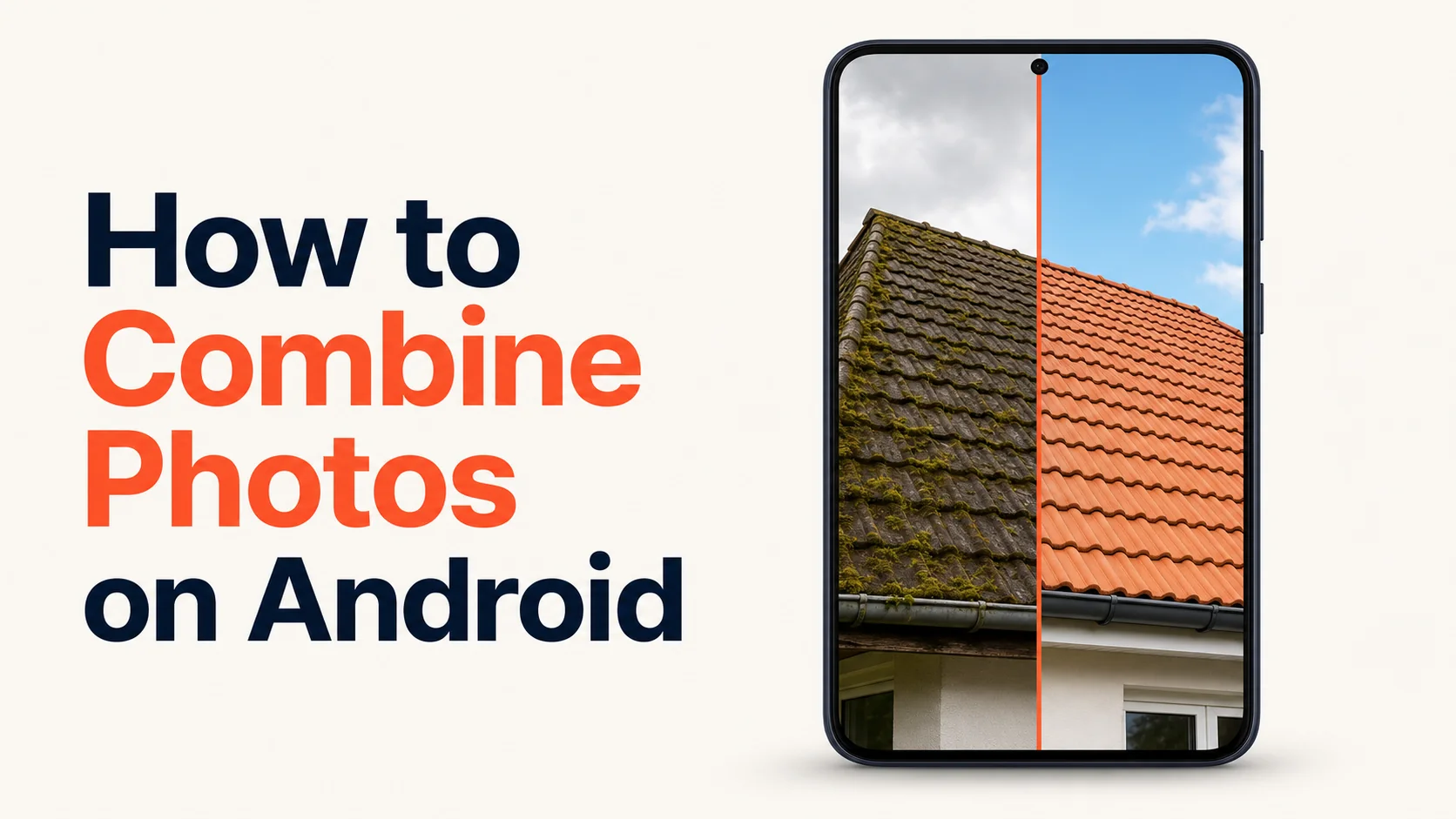
Half of the techs at our cleaning company use iPhones. The other half use Android — a mix of Samsung, Pixel, and a couple of Motorola phones from someone's family plan. The iPhone half had a one-tap workflow for before/after photos within a week. The Android half was still messing with it three months later. The reason isn't that combining photos on Android is hard. The reason is that the answer is different on every Android phone.
The 30-Second Answer
To combine photos on Android, the path depends on your phone. Samsung Gallery has a built-in collage tool. Google Photos has a Collage option. Stock Android builds without either default to a browser-based tool. The cross-device-friendly answer is to skip the apps and use a free browser tool — same workflow on any Android phone, any version, any year.
That's the whole landscape. The rest of this article is the per-phone breakdown plus the workflow that actually works for a business that posts every day.
 Real job from Top Care Cleaning (Grand Rapids, MI) — algae-stained brick walkway before, clean exposed brick after. Same workflow on Android or iPhone — two photos in, one combined image out.
Why Android Is Messier Than iPhone on This Specific Job
iOS has one Photos app, one Shortcuts app, one set of native answers. Apple makes the phone, Apple makes the OS, Apple ships Photos. Whatever Apple decides about combining photos is the answer for every iPhone.
Android isn't like that. Google ships Android. The phone makers — Samsung, Google itself, Motorola, OnePlus, Xiaomi, Oppo, Asus, and on and on — each ship their own version of the photo app. Sometimes two photo apps on the same phone: a manufacturer one and Google Photos. The collage feature is in different places on different phones, or missing entirely.
Then add Google Photos itself, which used to have a strong Collage feature, then quietly nerfed it to grid-only templates, then added some of it back with the recent Material 3 redesign (Google Photos Help).
The result: "how do I combine photos on Android" doesn't have a single clean answer. It has six or seven, depending on what phone you're holding. Let me walk through them.
Path 1: Samsung Galaxy (Samsung Gallery)
If you have a Samsung Galaxy from roughly the last six years, Samsung Gallery has a built-in collage feature that's actually one of the better native options on any phone, iOS or Android.
Open Samsung Gallery (the manufacturer's photo app, not Google Photos).
Tap the three-dot menu in the top right of a photo album.
Tap "Create" → "Collage."
Select two photos. Samsung lets you pick up to six.
Choose a layout. For two photos, the side-by-side options work. The grid options waste space on a two-photo merge.
Adjust the gap, the rounded corners, and the background color. Defaults are usually fine. The 4-pixel white gap is the right default.
Save. The combined image lands in your gallery at high resolution.
Samsung Gallery's collage is genuinely good — full-resolution output, decent UI, no watermark, no signup. The catch is that it only exists on Samsung devices. If you switch to a Pixel next year, you're starting over.
Path 2: Google Pixel (Google Photos)
If you have a Pixel — or any Android phone where Google Photos is your primary photo app — the Collage feature is back, in a slightly reduced form.
Open Google Photos. Tap "Library" at the bottom.
Tap "Utilities."
Tap "Collage." (On some older versions this is under the plus icon at the top.)
Select two photos. Up to six.
Pick a layout. Google Photos' two-photo layouts are simpler than Samsung's — fewer options, less control over the gap, no rounded-corner setting.
Save. Output goes to your photos library, synced to Google Photos cloud.
The Google Photos collage works, but it's optimized for the grid use case (4-up, 9-up). The two-photo side-by-side feels like an afterthought. Output is high-res. No watermark.
The bigger Google Photos limitation: the Collage interface has been changed three times in the last four years. Whatever you learn in 2026 might move in 2027. Native phone tools are at the mercy of the OS team's quarterly redesign cycle.
Path 3: Motorola, OnePlus, Xiaomi, Asus (Manufacturer-Specific)
The other Android manufacturers each ship their own gallery apps with their own collage tools.
Motorola has a built-in gallery that on most models includes a collage option, usually under a "Create" or "+" menu. Quality varies by model year — newer Motos are better than older ones.
OnePlus, Xiaomi, Oppo, Asus all ship variants of the same idea — gallery app with a collage menu. The pattern is similar enough that if you've used Samsung Gallery once, you can usually figure out the others within a minute. The UI is different on every one.
The honest answer for users of these phones: try the native gallery first. If the collage feature exists and you only need to combine photos on Android once or twice a week, use it. If it doesn't exist, or the output looks dated, skip to Path 5.
Path 4: Stock Android Without a Manufacturer Skin
If you bought a budget phone, a lightly-skinned phone, or any device running close to vanilla Android, you might have no built-in collage tool. Some Android distributions ship the OS without a heavy gallery app, leaning instead on Google Photos.
On these phones, your options are:
- Use Google Photos (Path 2).
- Install a third-party app from the Play Store. A handful of them are free and watermark-free; most aren't.
- Skip the apps and use a browser tool. This is what I'd actually recommend.
The Play Store is full of photo collage apps. Many of them are aggressively monetized — free install, then watermark or signup wall on export, then a $4.99/month subscription for what should be a one-tap function. The pattern is familiar from the iPhone App Store. Influencer-tool pricing for owner-tool needs.
Path 5: Browser Tools (The Cross-Device Answer)
Open Chrome on your Android phone. Go to a browser-based combiner. Upload two photos, pick horizontal or vertical, download. Same workflow as on iPhone, same workflow as on a laptop, same workflow regardless of which phone manufacturer's app you've inherited.
This is what I'd actually recommend for most Android users — especially small-business owners and operators who care more about the workflow than the tool.
Three reasons:
- Manufacturer-agnostic. Your workflow doesn't break when you switch phones.
- No app install. No update cycle, no permissions popups, no storage hit.
- No watermark, no signup wall if you pick the right tool.
Hosted Snap is the browser tool I built for exactly this — no signup, no watermark, no email-capture wall on the free tier. Open it in Chrome, upload, download. About ten seconds.
I'm not saying browser tools are the only honest answer. Samsung Gallery is good. The Google Photos collage works. The honest answer is just: pick whichever path your phone makes easy, and don't pay a subscription for a job that should be free.
The Five-Step Universal Technique (Same Across Every Path)
Whichever path you pick, the underlying technique is the same. This is the part that doesn't change between Samsung Gallery, Google Photos, browser tools, or a third-party app.
1. Match the orientation. Two portrait shots merge cleanly horizontal. Two landscape shots stack cleanly vertical. Mixing one of each almost always looks crooked unless you crop one to match.
2. Pick horizontal or vertical. Horizontal is the right default for before/after work — the eye reads left-to-right. Vertical works for tall outputs (Stories, Pinterest, vertical-feed posts).
3. Pick spacing. A 4-8 pixel white gap reads as "two separate moments." Zero gap reads as "this is one wider scene." A thick colored border reads as 2014 Pinterest. The default in most tools is fine.
4. Match exposures. If one photo is bright and one is dark, the eye can't compare them cleanly. Browser tools and Samsung Gallery have auto-balance. Use it.
5. Export to the right destination size. Picking Instagram, GBP, or Facebook before export saves you a second round of cropping later. Most tools have a destination preset.
That's the technique. The tool is just which interface wraps it.
The Layout Choices That Make a Combined Photo Look Professional
The mechanical part of combining photos on Android is now solved. The creative part — making the result actually look good — is what separates a post that gets engagement from a post that gets scrolled past.
Before goes on the left. Always. The eye reads left-to-right. Reversing it makes the after look like the before. Don't get cute.
Crop both to matching framing. Wide before + close-up after = two different scenes, not one comparison. Crop the wide shot to match before merging.
One thin white gap, no decorative borders. The split itself communicates the contrast. Adding visual clutter weakens it.
Match the time of day. Same shadow direction, same color temperature. A 10 AM before and a 6 PM after are doing two different jobs.
Skip the giant labels. "BEFORE" / "AFTER" in 80pt Impact font over each half is the visual equivalent of explaining your own joke. The reader can see the difference.
The full deep-dive on layout choices, sizing per platform, and pro presentation tips is in the combine two photos side by side parent guide.
How a Cleaning Business Actually Uses This on Android
Top Care Cleaning has been in my family since 1980 — my dad and uncle started it, my brother and I run it now. The techs use whatever phone they came with on day one. About half are on Samsung Galaxy, the rest on a mix of Pixel and Motorola.
Here's the workflow that survived contact with real techs in the field:
Phase 1: capture. Tech pulls up to a job. Wide phone shot of the dirty driveway / dingy siding / mossy roof, no filter. Finishes the job. Same shot from the same spot.
Phase 2: combine. Open Chrome bookmark (we put a Hosted Snap shortcut on the home screen — Android lets you do this from Chrome with three taps). Upload both photos, pick horizontal, download.
Phase 3: post. Combined photo goes to our Google Business Profile post for the day, queues for Instagram and Facebook, optionally sends to the customer if they want a copy.
Total time added to the job: under two minutes. We did NOT try to standardize the techs on Samsung Gallery, Google Photos collage, OR a third-party app. The phones were too varied and the apps moved too often. Browser tool + home-screen shortcut was the path of least resistance.
If you run a multi-tech operation on mixed Android phones, this is the model I'd recommend. One URL, one bookmark, one workflow regardless of which manufacturer made each tech's phone.
The next problem is what to do with all these combined photos — captions, scheduling, cross-posting to GBP and Facebook and Instagram without doing it three times. That's a different tool, and it's Hosted Proof. Snap makes the combined image. Proof handles the post.
What About Quality on Android?
Different photo apps and different phones handle JPEG compression very differently. Three quick tests to make sure your combined photo on Android isn't being degraded:
- Check output dimensions. A 2024+ Android phone shoots photos around 4080 × 3060 (12MP), give or take depending on the sensor. A horizontal merge should output around 8000 pixels wide if the tool preserved resolution. Under 4000 wide means the tool downsampled.
- Save as JPEG, not WebP. Some Android tools default to WebP, which is fine for the web but doesn't play nicely with every social platform. Facebook accepts WebP; Instagram sometimes doesn't; Google Business Profile does. JPEG is the safest universal export.
- Check edges. Compression artifacts show up first along sharp edges — windows, roof lines, text. Fuzziness or color ringing means the compression was aggressive.
Samsung Gallery and the better browser tools preserve resolution. Free apps from the Play Store often downsample aggressively to push you toward paid tiers.
FAQ
What's the easiest free way to combine photos on Android?
Browser tool, no signup, no watermark. Open Chrome, go to the URL, upload, download. Faster than installing an app for first-time use. If you're on Samsung specifically, the built-in Gallery collage is also a strong free option with no install needed.
Does Google Photos still have a collage feature in 2026?
Yes, under Library → Utilities → Collage. Reduced from earlier versions but still functional for basic two-photo merges. The UI changes every couple of years, so the exact path may shift.
Can I combine photos on Android without installing an app?
Yes — use a browser tool. Open Chrome, go to a free combiner site like the one in merge photos online free, upload, download. No install, no permissions popups, no storage hit.
Does Samsung Gallery work the same on all Galaxy phones?
The core collage feature has been on Samsung Gallery since roughly 2019, but the menu location and exact options change with each One UI version. If the path in this article doesn't match what you see, look under the three-dot menu or the plus icon — Samsung moves these every couple of updates.
Can I do this on a Chromebook or Android tablet?
Yes — browser tools work the same on tablets and Chromebooks. Drag-and-drop is nicer with a bigger screen. The same web tool that solves Android phone merging also solves Chromebook merging without an install.
Will the combined photo sync to Google Photos automatically?
Yes, as long as your Camera folder is set to back up to Google Photos. The combined image saves to your local gallery, gets picked up by the backup, and shows up on every device synced to your Google account.
Is there a way to do this on iPhone, too?
Yes, multiple ways — Shortcuts is the cleanest native option. Full breakdown in how to put two pictures together on iPhone.
Are there good Android-specific photo combiner apps?
A handful are honest, but most have either watermarks on free output or aggressive signup walls. The pattern is detailed in photo combiner app. For most Android users, the browser path beats installing an app.
Try Hosted Snap (Free, No Account, Works in Chrome)
I built Hosted Snap because every option for combining two photos was either built for influencers, gated behind an email capture, or watermarked unless you paid. The free tier is real — no signup, no email, no watermark. It works in Chrome on any Android phone, on iOS, on Chromebooks, on laptops, on tablets. Same workflow everywhere.
Add it to your home screen on Android with three taps from Chrome's menu and it behaves like a native app — open, upload, merge, download.
If you run a local service business, pair Snap with Hosted Proof for the next step — getting the combined photo onto Instagram, Facebook, and your Google Business Profile on a schedule that doesn't burn your evenings.
About the author
Alex Host is the founder of Hosted Brands and the operator of Top Care Cleaning, a residential and commercial cleaning business his father and uncle founded in Grand Rapids, Michigan in 1980. He runs a multi-tech cleaning crew on a mix of Samsung, Pixel, Motorola, and iPhone devices and learned the hard way that the only workflow that survives contact with real teams is the one that works on every phone. He builds software tools for local service businesses because every off-the-shelf option was either built for companies ten times his size or priced like one. He's building the whole Hosted Stack in public.