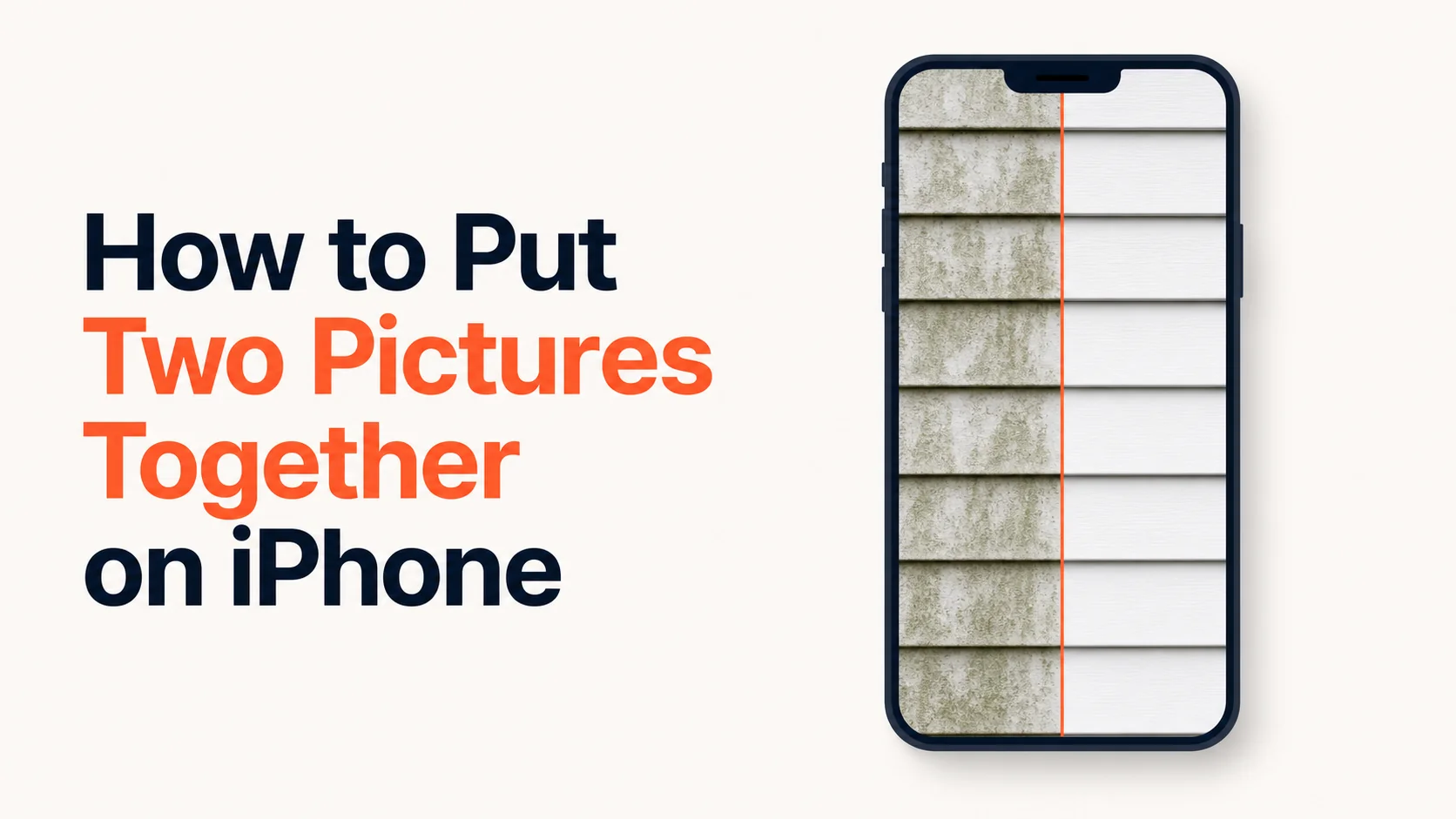
A tech at our cleaning company asked me last week, on the truck, between jobs: "How do I put two pictures together on my iPhone? The before and the after, side by side. I keep texting them to you separately."
He'd been doing it the hard way for six months. So had I, for three years before that. I run a cleaning business in Grand Rapids, and we shoot before/after pairs every day. The phone is always in our hands. Apple has never built a one-tap button for this. The internet says ten different things. Here's what actually works.
The 30-Second Answer
To put two pictures together on iPhone, you have three honest options: a one-time Shortcuts setup that gives you a one-tap merge forever, the Photos app's built-in Markup hack (free but lower resolution), or a browser tool that works on any device. The fastest result is a browser tool. The most native option is Shortcuts. Everything else is noise.
That's the whole job. The rest of this article is what I learned trying every path before settling on a workflow that actually fits a workday.
 Real job from Top Care Cleaning (Grand Rapids, MI) — gutters clogged with leaves and shingle grit on the left, fully cleared on the right. This is the kind of before/after a service business shoots on an iPhone every day. Twenty seconds to combine in any honest tool.
Why Apple Hasn't Built This Button Yet
Every iPhone user who has ever sent a friend a before/after photo has asked the same question. Apple has known about it since at least iOS 8 (Apple Support, 2015). They've added Markup, Live Photos, Live Text, AI Cleanup, Photographic Styles, and approximately 400 other features. They have not added a "combine these two photos side by side" button.
My theory: combining photos is Pro work in Apple's mental model. Pro work happens in Photos for macOS, or in third-party apps. The phone is for capture. The combine step is supposed to happen later.
That made sense in 2014. It doesn't make sense in 2026. We capture, post, and respond on the phone now. Asking a small-business owner to airdrop their photos to a Mac to combine them is asking them to do half a workflow on a device they don't carry into the field.
So Apple is sitting this one out. Which means the answer to "how do I put two pictures together on iPhone" is the answer to a workaround question, not a feature question.
Option 1: Shortcuts (The Best Native Answer)
Apple's Shortcuts app — preinstalled on every iPhone running iOS 13 or later — has a "Combine Images" action. It is the single most underused tool in iOS.
Here's the one-time setup, and then it's one tap forever.
Open Shortcuts. It's a black-and-white app icon with overlapping circles. Already on your phone.
Tap the plus icon in the top right.
Tap "Add Action."
Search "Combine Images." Add the action.
Set the input to "Photos." This makes the shortcut accept selected photos from your photo library.
Set the mode to "Horizontally" or "Vertically." Horizontal is the right default for before/after work because before/after reads left-to-right.
Add a second action: "Save to Photo Album." This drops the combined image straight into your camera roll when the shortcut finishes.
Name the shortcut. Something short. I named mine "Combine."
Tap the share icon in the shortcut details and toggle "Show on Share Sheet" on. This is the part most tutorials skip and it is the whole reason this workflow is worth doing.
Now the workflow looks like this: open Photos, select two photos (long-press one, tap a second), tap the share button, scroll to the bottom of the share sheet, tap "Combine." Done. The combined image is in your camera roll five seconds later.
The first run takes about ten minutes of setup. Every run after that takes about ten seconds. If you put two pictures together on iPhone more than once a month, this is the path. The pattern is also flexible — you can clone the shortcut with vertical mode and have a second one-tap button for tall layouts.
Option 2: The Markup Hack (Free, No Setup, Lower Quality)
If you need to put two pictures together on iPhone right now, you don't want to mess with Shortcuts, and you only need to do it once or twice, the Markup tool inside Photos will get the job done.
Open Photo 1 in Photos. Take a screenshot. This gives you a copy of Photo 1 you can mark up without losing the original.
Tap the screenshot thumbnail that appears in the bottom-left corner. The Markup interface opens.
Tap the plus icon at the bottom. Tap "Add Image."
Pick Photo 2. It drops onto the Markup canvas.
Drag and resize Photo 2 so it sits next to Photo 1. Pinch to scale. Adjust until both photos are roughly the same size and aligned.
Tap "Done." Save to Photos.
The catch with this method is what you saved isn't a "combined photo" in any clean sense — it's a screenshot with a second photo pasted on top. Screen resolution on a recent iPhone is 1170 × 2532, which means your output is a vertical phone-screen-shaped image, not a true horizontal pair. You also lose the original resolution of both photos because the screenshot capped them at screen size.
It works for casual texts and quick social. It doesn't work for high-resolution posting where image quality matters, and it's almost always the wrong move if you're a business posting visible-result work to your Google Business Profile or your Instagram feed. The customer can tell.
Option 3: A Browser Tool (Works on Any Device, Including Your iPhone)
Open Safari on your iPhone. Type the URL of a free photo-combining tool. Upload Photo 1, upload Photo 2, pick horizontal or vertical, download. The whole job takes about fifteen seconds.
This is what I do at Top Care Cleaning when one of our techs needs to send a customer a before/after on the spot from the truck. They're not going to set up a Shortcut on day one of the job. They open a browser, do the job, send the result, get back to cleaning.
Hosted Snap is the tool I built for exactly this — no signup, no watermark, no email-capture-wall between upload and download. But the pattern works with any browser tool that meets those three criteria. The browser path is the closest thing iOS has to a real "combine two photos" button right now.
What About Layout, Pic Stitch, and the Other App Store Options?
The App Store has dozens of apps that do exactly this job. I've tried roughly six of them across two phones over the years. Rather than calling out individual apps by name, here are the patterns I ran into. If you've shopped this category, you'll recognize them.
The free-but-watermarked category. You install the app, do the job, hit save, and the export has the app's logo stamped across the bottom corner. To remove it you pay $4.99 or sign up for a subscription. Twenty years of running a business and somebody else's brand ends up on my before/after photo.
The signup-wall category. The app is free to install. You do the job. You hit save. A modal asks for your email. Then they email you. Then they keep emailing you, even after unsubscribe. Free tier is the trade — your email for the export.
The influencer-tool-priced-for-influencers category. A photo-combining app with a $7.99/month subscription for what should be a one-time tap. Influencer-tier pricing for owner-tier needs. No thank you.
The "this app was last updated in 2019" category. Genuinely free, no watermark, no signup wall — but the UI looks like a shareware page from 2014. The export works, but you spend twenty seconds figuring out which button is the right one. They exist. They're rare. The UX is rough because the developer isn't monetizing enough to invest in design.
I don't recommend the app-install path on iOS for this specific job. Shortcuts gives you the native one-tap experience for free. Browser tools give you the cross-device experience for free. Installing a third-party app to compress a built-in capability behind a paywall is the wrong trade for most people.
The iPhone-Specific Sizing Numbers You Need
Before/after pairs shot on a recent iPhone are 4032 × 3024 pixels each. Combining them horizontally gives you an 8064 × 3024 image (2.67:1 aspect ratio) — way too wide for Instagram, way too wide for most uses.
What the platforms actually want:
| Destination | Target dimensions | What to do |
|---|---|---|
| Instagram feed (square) | 2160 × 2160 | Combine vertically, then center-crop |
| Instagram feed (4:5) | 2160 × 2700 | Combine vertically, export at 4:5 |
| Instagram Stories | 1080 × 1920 | Combine vertically, crop tall |
| Facebook timeline | 2048 × 1024 | Combine horizontally, export 2:1 |
| Google Business Profile | 1200 × 900 min | Combine horizontally, crop to 4:3 |
| Text message / iMessage | 1500 × 750 | Combine horizontally, downsize |
The Workflow That Actually Works for a Service Business
Top Care Cleaning has been in my family since 1980. My dad and uncle started it. My brother and I run it now, and visible-result work — driveways, roofs, carpets, windows, gutters, Christmas lights — produces a before/after pair every job.
Here is the actual phone workflow we land on once people stop fighting it:
Step 1. Shoot the before. No filter. Same focal length you'll use for the after.
Step 2. Do the job. Walk away from the shot. Come back when you're done.
Step 3. Shoot the after from the same spot, same angle, same focal length. The match is the work; the photo is easy.
Step 4. Open Photos. Select both. Tap share. Hit "Combine" on the share sheet (the Shortcut you set up once). Or open a browser and use a free tool. Either path takes ten seconds.
Step 5. Post to GBP, Facebook, Instagram. Done.
Total time added to the job: under two minutes. Total annual hours saved versus the old "dump to Photoshop later" workflow: in our case, 150 to 230 hours. That's not a typo. The job is small. The compounding is enormous.
The next problem is what to do with all these combined photos — captions, scheduling, cross-posting to GBP and Facebook and Instagram without doing it three times. That's a different tool, and it's Hosted Proof. Snap makes the combined image. Proof handles the post.
What If I Want to Put Three or More Pictures Together?
The Shortcuts "Combine Images" action accepts as many photos as you select — three, four, six, ten. Modes are still horizontal or vertical, no grid. For grid layouts (2×2, 3×3), Shortcuts can't do it natively and you need either a browser collage tool or a paid app.
For most service-business work, you don't want three or more anyway. The before/after pair tells the story clearly. Adding "during" or "process" shots dilutes the contrast. The two-photo pair is doing 80% of the work.
If you genuinely need a 4-photo grid — say, a roof-cleaning project where four sides of the house tell the story — that's the same job as a Facebook photo collage. The same tools that combine two photos into one also do 4-up and 6-up grids. The work is the same shape; only the photo count changes.
FAQ
Does the Combine Images Shortcut work offline?
Yes. Shortcuts runs locally on the phone. No internet needed. This is its single biggest advantage over browser tools — useful if you're on a job site with bad signal or in a basement with no Wi-Fi.
Why does my combined image look pixelated?
Two likely causes: you used the Markup screenshot hack (which downsizes to phone-screen resolution), or your tool re-compressed the JPEG aggressively. Shortcuts and good browser tools preserve the original resolution. If your output is under 2000 pixels on the long edge and your input was a full-res iPhone photo, the tool downsampled — try a different one.
Can I put a portrait and a landscape photo together?
Yes, but they'll look uneven unless you crop one to match. Crop both to the same orientation in Photos before merging. This is the single biggest fix for "my combined photo looks weird" complaints. The same orientation rule applies on Android — see the how to combine photos on Android guide for the Android-side equivalent.
Will iCloud Photos sync the combined image to my Mac?
Yes, automatically, as long as iCloud Photos is on. The combined image is saved as a normal photo in your camera roll, which syncs to your Photos library everywhere.
Can I add text or labels to the combined photo on iPhone?
Yes — Markup gives you text annotations after the merge. For business use, I'd strongly suggest not adding "BEFORE" / "AFTER" labels. The split itself communicates the contrast. Labels say "I don't trust you to notice." Read more on layout in the parent combine two photos side by side guide.
Does the Combine Images Shortcut work on iPad?
Yes. Shortcuts is universal across iOS and iPadOS. The same one-tap setup works on iPad with no changes.
Is there a free way to do this on a Mac instead?
Yes — Preview supports a "create PDF from multiple files" workflow that gets you a combined image in one PDF page, and macOS has its own Shortcuts app. For browser-based merging, the same photo combiner app tools work on macOS. The browser path is the most cross-platform option.
What if I want to combine photos and upload them to Instagram in one step?
Different job. Instagram's built-in carousel lets you upload up to ten photos as separate slides; combining them into a single image first is a different workflow. For service businesses, the combined image (single post) almost always beats the carousel (multi-slide) for engagement because the contrast happens in the cover image — see Hosted Proof for the scheduling side of the story.
Try Hosted Snap (Free, No Account, Works in Safari)
I built Hosted Snap because every off-the-shelf option for combining two photos was either built for influencers, gated behind a signup, or watermarked unless you paid. It's a free browser tool — open it on iPhone, iPad, Mac, or Android, upload two photos, pick horizontal or vertical, download. No account, no email capture, no watermark on the free tier.
If you run a local service business, pair it with Hosted Proof for the next problem — getting the combined photo onto Instagram, Facebook, and your Google Business Profile on a schedule that doesn't burn your evenings.
About the author
Alex Host is the founder of Hosted Brands and the operator of Top Care Cleaning, a residential and commercial cleaning business his father and uncle founded in Grand Rapids, Michigan in 1980. He's the marketing and accounting half of a brother-run operation that shoots before/after photos on iPhones every working day. He builds software tools for local service businesses because every off-the-shelf option was either built for companies ten times his size or priced like one. He's building the whole Hosted Stack in public.